Web Firewall: Bad Actor Blocking
Automatically block IP addresses that probe your websites for weaknesses, using your own Cloudflare account.
What the page is for
Attackers scan websites for exposed files, admin pages and known vulnerabilities. This page connects Lavawall to your Cloudflare account and watches for that behaviour. When an IP address trips your WAF rules, generates too many 404 (page not found) errors, or requests files that only a vulnerability scanner would look for, Lavawall adds it to a blocklist in Cloudflare so it can no longer reach your sites.
It works on the Cloudflare Free plan. Blocks expire on their own after the ban length you choose. Your own devices' IP addresses and your trusted IPs are never blocked, and you can add technician and office addresses to a never-block list.
You can start in Dry-run mode, which only detects and logs what would be blocked without changing anything in Cloudflare. When you are happy with the results, turn Dry-run off to go live.
What you see
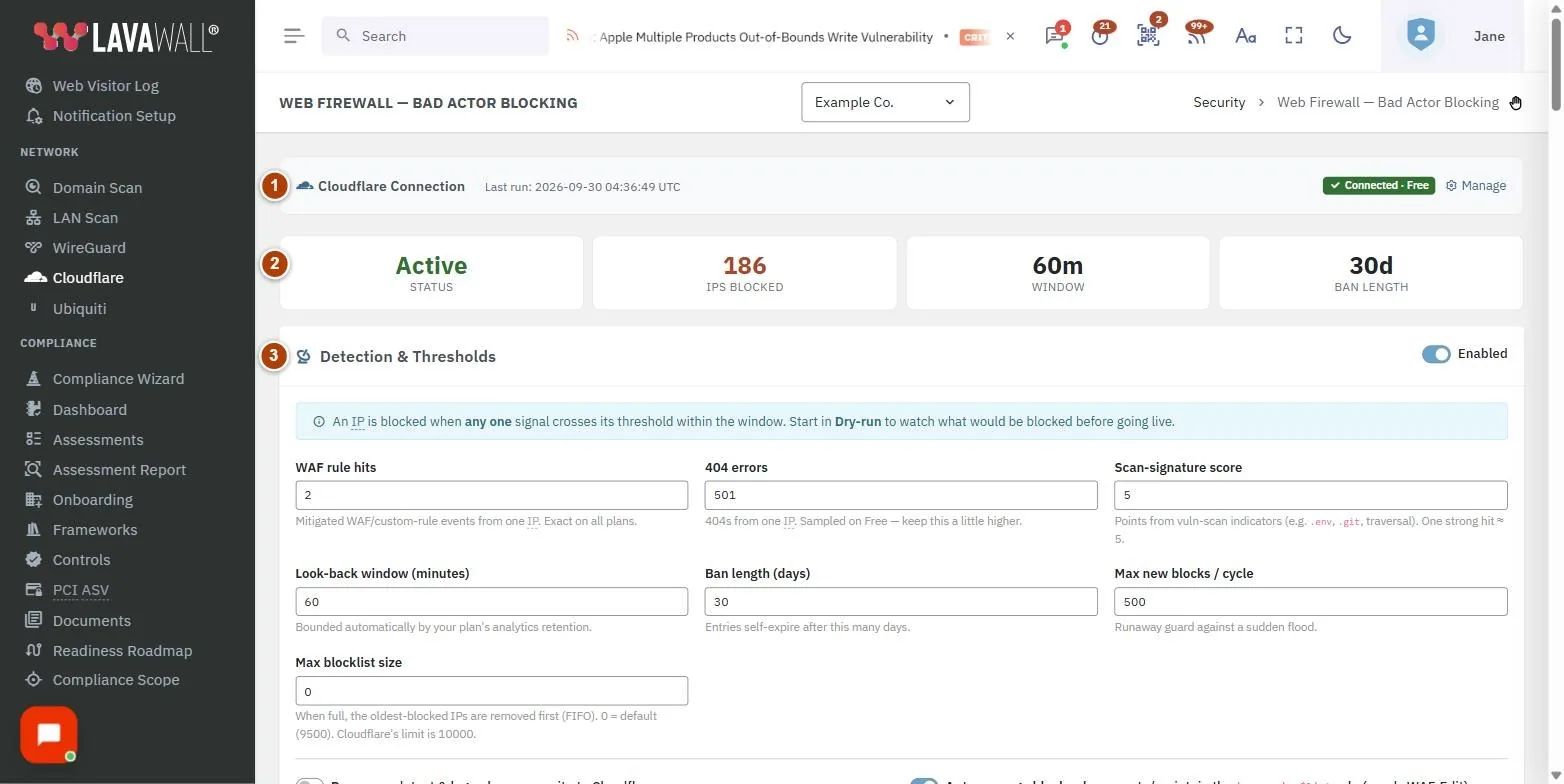
- Cloudflare Connection: connection status and plan, the last run time, Manage to change the API token, and a guide to creating a token.
- Status strip: Status (Active, Dry-run or Off), IPs Blocked, Window and Ban Length.
- Detection & Thresholds: the Enabled switch, the signal thresholds, and the Dry-run and Auto-manage block rule options.
- Zones: each Cloudflare zone (website), whether it is monitored, its effective settings and last run, with per-zone overrides.
- Exclusions (Never Block): automatic exclusions for your known device IPs and trusted IPs, plus manual exclusions.
- Trusted IPs: a hand-maintained list of trusted addresses with name and note.
- Account IP Lists: maintenance tools to clean up old entries in any IP list on the Cloudflare account, and Uninstall from Cloudflare.
- Currently Blocked: every blocked IP with Reason, Blocked and Expires, a filter box and an unblock button.
How to connect Cloudflare
- Click How do I get a Cloudflare API token? and follow the steps to create a custom token in your Cloudflare dashboard with the listed permissions.
- Paste the token into Cloudflare API Token.
- Click Connect & Save. Lavawall checks the token and detects your zones automatically.
To replace the token later, click Manage, paste the new token and click Update token.
How to set detection thresholds
- In Detection & Thresholds, set:
- WAF rule hits: blocked WAF or custom-rule events from one IP.
- 404 errors: page-not-found errors from one IP. On the Free plan these are sampled, so keep this a little higher.
- Scan-signature score: points for requests that look like vulnerability scanning. One strong hit is about 5 points.
- Look-back window (minutes): how far back each check looks.
- Ban length (days): how long a block lasts before it expires.
- Max new blocks / cycle: a safety limit against a sudden flood.
- Max blocklist size: when the list is full, the oldest blocks are removed first. 0 uses the default.
- Leave Dry-run ticked while you check the results.
- Turn on Enabled. Changes save automatically.
An IP is blocked when any one signal crosses its threshold within the window.
How to go live
- Watch Currently Blocked during Dry-run to see which addresses would be blocked.
- Add any addresses that should never be blocked to Exclusions (Never Block) or Trusted IPs.
- Untick Dry-run. The Status tile changes to Active.
- Leave Auto-manage block rule ticked so Lavawall creates and maintains the Cloudflare rule that enforces the blocklist (this needs the WAF edit permission on your token).
How to manage zones
- In Zones, use the Monitor switch to choose which websites are watched. All zones share one blocklist.
- To use different settings for one zone, click its settings button, change Dry-run, Manage WAF rule, WAF rule hits, 404 errors, Scan-signature score or Window (minutes), and click Save overrides. Leave a field blank or on Inherit to use the company default.
- If you add a zone in Cloudflare, click Re-detect.
How to exclude or unblock an address
- To never block an address, type it in Manual exclusions (technicians, offices) and press Enter or a comma. IPv4 addresses, ranges such as 203.0.113.0/24, and IPv6 prefixes are accepted.
- To add a trusted IP with a label, enter IP / CIDR, an optional Name and Note in Trusted IPs, and click Add.
- To unblock an address now, find it in Currently Blocked (use the filter box) and click its unblock button, then Unblock.
How to clean up or uninstall
- In Account IP Lists, click Load to list the IP lists on your Cloudflare account.
- Click Clean up… on a list, choose Older than N days or Before a specific date, and preview the entries before deleting.
- To remove Lavawall from Cloudflare, click Uninstall from Cloudflare, optionally tick Also delete the Lavawall blocklist, type UNINSTALL and confirm. This removes the block rule from every zone and turns blocking off. Your token and settings stay in Lavawall.
Tips
- Always start in Dry-run and review Currently Blocked before going live.
- Keep Auto-include your known device IPs on so your own staff and devices are never blocked. The badge beside it shows how many addresses are covered.
- A green shield beside a zone name means the block rule is active in that zone.
- Blocks expire on their own after the ban length, so the list does not grow forever.
- Disconnect removes the saved token and stops blocking, but leaves existing blocklist entries in Cloudflare.
Troubleshooting
- "The Cloudflare API token was rejected." The token may be expired or missing permissions. Create a new token and save it again.
- "The token can't read one or more zones." Check the token's Zone and Analytics permissions and its zone resources.
- "Cloudflare is rate-limiting requests." This usually clears on its own shortly.
- "No zones yet: click Re-detect." Click Re-detect in the Zones card. If nothing appears, check the token's zone scope.
- A cleanup shows "Partly done". Some items could not be removed. Run the cleanup again to retry.
Related articles
Still need help?
Search the support centre, or contact our support team and tell us which page you were on.
Names, companies, devices and figures in the pictures are examples. Other product and company names are trademarks of their respective owners.