Elevation Devices
See which computers run the elevation agent, what mode each one is in, and change the mode for a single computer when it needs to differ from the company.
What the page is for
This page lists every device in the company, including ones that do not yet have the elevation agent, so you can see where you still need to deploy. For each device it shows whether it is enrolled, its operating system, what Windows edition it can enforce with, the mode it is running in and where that mode came from, the rule bundle it has cached, when it last synced policy, and how many requests are pending.
Most computers should follow the company setting. When one needs to be different, for example a developer's workstation kept in Audit only while everyone else is enforced, an administrator can set an override for that device.
What you see
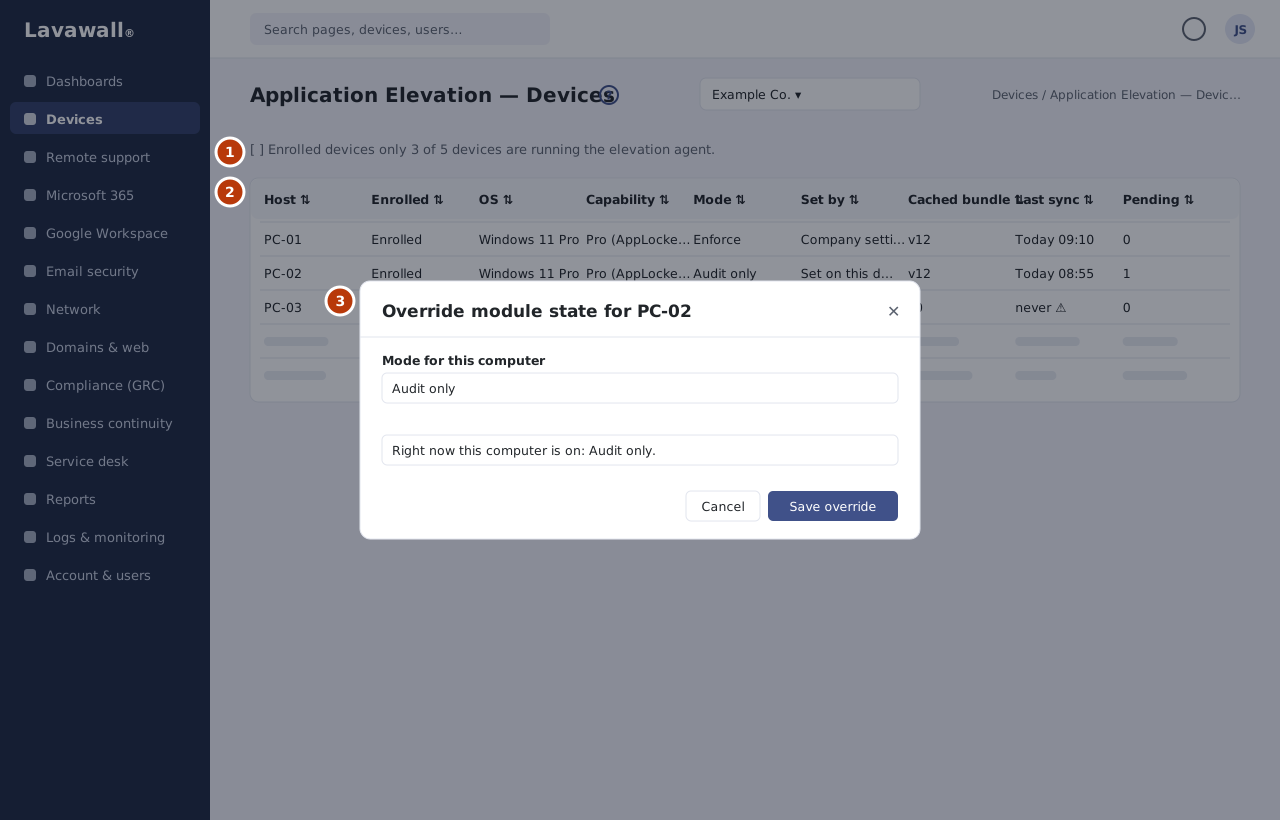
- Enrolled devices only: switch to hide devices without the agent, with a count such as "3 of 12 devices are running the elevation agent."
- Devices table: Host, Enrolled, OS, Capability, Mode, Set by, Cached bundle, Last sync, Pending, and an edit button.
- Override module state dialog: choose Use the company setting, Disabled, Audit only, Enforce, or Enforce + Ringfence for one computer.
How to use Elevation Devices
How to find computers that still need the agent
- Leave Enrolled devices only off.
- Sort by Enrolled. Devices showing "Not installed" do not have the elevation agent yet.
How to set a different mode for one computer
- Select the pencil button on the computer's row.
- Read the hint showing the mode the computer is on right now.
- Choose a mode in the list, then select Save override.
- The Set by column changes to "Set on this device".
How to put a computer back on the company setting
- Select the pencil button on the row.
- Choose Use the company setting, then Save override.
How to check a computer is receiving policy
- Sort by Last sync.
- Compare Cached bundle with the active bundle on the Dashboard.
Tips
- Capability shows what the computer can do: Home (Audit-only), Pro (AppLocker), Enterprise or Server.
- Mode is the mode actually in force; Set by tells you whether it comes from the company setting or an override on that device.
- Times are shown in your own time zone.
- Opening the page from the Dashboard's Enrolled devices tile turns on Enrolled devices only for you.
Troubleshooting
- Last sync shows "never" with a warning icon.: The device has not reported policy yet. This is almost always the agent failing to start: check that the elevation agent is installed and running.
- "No devices have enrolled yet.": Install the elevation agent on a computer that already runs the remote-support agent.
- Mode shows "Unknown".: The agent reported a mode this console does not recognise, usually because the agent is newer than the console.
- There is no edit button.: You need the elevation Admin permission.
Task guides that use this page
Related articles
Still need help?
Search the support centre, or contact our support team and tell us which page you were on.
Names, companies, devices and figures in the pictures are examples. Other product and company names are trademarks of their respective owners.