Notifications
See every alert Lavawall has raised for your companies in one searchable list, including ones nobody is subscribed to.
What the page is for
Notifications is a page in the Lavawall® console, in the Logs & monitoring area. Lavawall is the RMM, security, and compliance platform from ThreeShield, built and hosted in Canada. About this feature.
The Notifications page lists every notification raised for the selected company, or for all your companies, newest first. Each entry shows when it happened, the device involved, its category and criticality, whether it has been resolved, a description and the company.
This is the full history, independent of who receives email or browser alerts. Use it to check what happened on a device, to review alerts that no one was subscribed to, or to export alerts for a report.
What you see
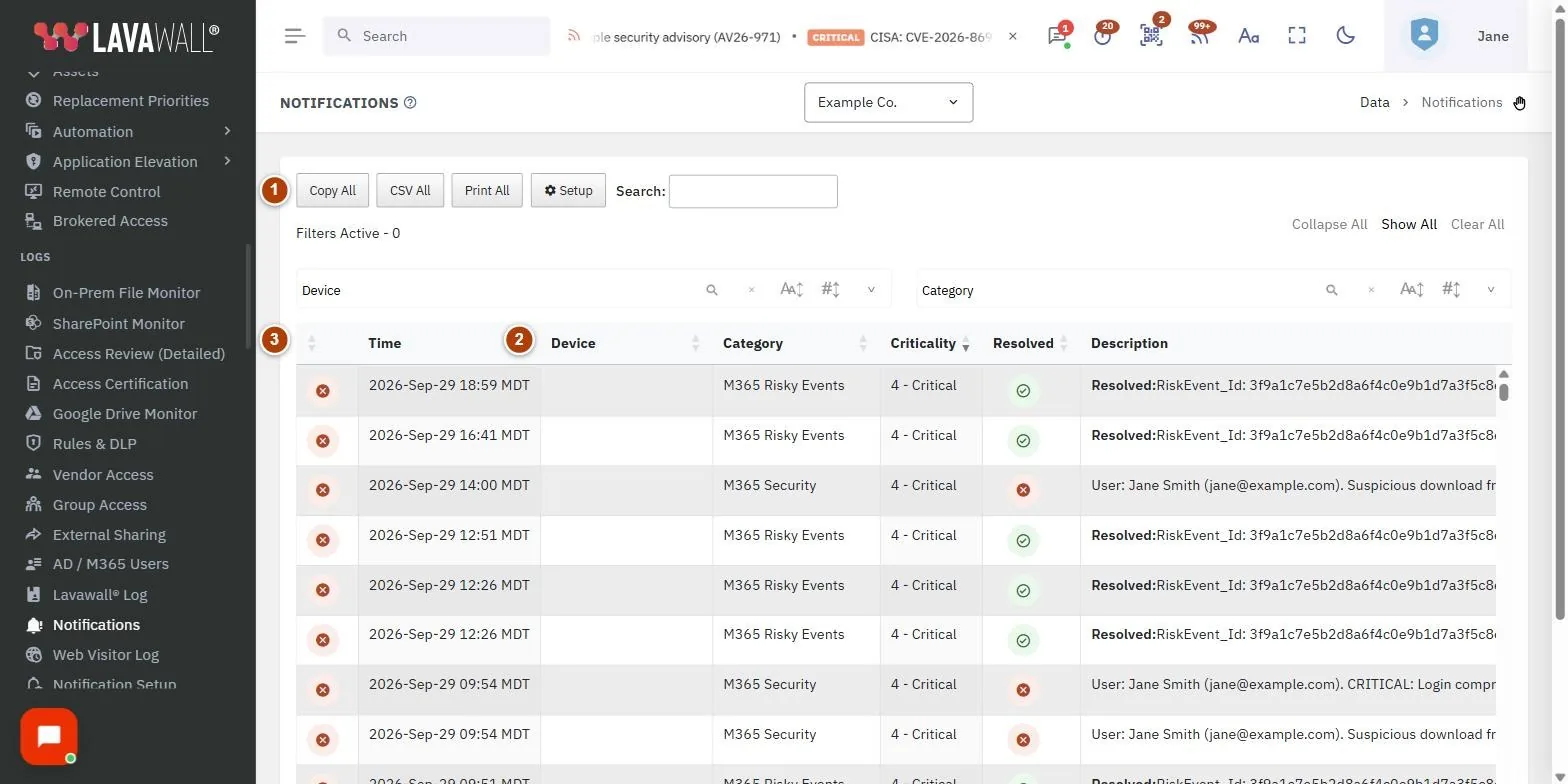
- Toolbar: Copy All, CSV All, Print All and Setup, plus a search box.
- Filter panes: filter by Device and Category (collapsed until opened).
- Notifications table: Time, Device, Category, Criticality, Resolved, Description and Company.
How to use Notifications
How to find notifications for a device or type
- Type a device name, category or words from the description into the search box.
- Or open the filter panes and pick one or more devices or categories.
- Click a device name to open that device.
How to sort the list
- Click a column heading, such as Criticality or Time.
- The list starts sorted by time, newest first, then by criticality.
How to export notifications
- Filter the list if you only want some of it.
- Click CSV All to download, Copy All to paste into a spreadsheet, or Print All to print.
How to change who is alerted
- Click Setup to open Notification Setup.
Tips
- Scroll to load more rows; the list loads in batches as you go.
- Select a single company in the company picker to focus on one client.
- Times are shown in your local time.
Troubleshooting
- "No notifications for this company".
- Nothing has been raised for the selected company yet. Choose another company or all companies.
- An alert I expected by email is here but was not sent.
- It may not be in anyone's subscription, or it may be waiting for a digest. Check the subscriber's settings in Notification Setup.
Related articles
Still need help?
Search the support centre, or contact our support team and tell us which page you were on:
- Chat now: use the chat button in the bottom-right corner of this page to reach our team right away. Where cookie consent is needed, the chat starts after you accept (cookie settings).
- Email: send our support team a message through the contact page. It goes straight to a person.
- Phone: AB: 1-403-538-5053, BC: 1-778-731-1339, ON: 1-289-724-8829, US: 1-406-988-7333, UK: +44 20 3695 9786.
Names, companies, devices and figures in the pictures are examples. Other product and company names are trademarks of their respective owners.