Remove local admin rights safely with Application Elevation
Remove local administrator rights from Windows computers without stopping people from working, starting in Audit mode and moving to Enforce.
A Lavawall® task guide: 8 steps across 7 console pages.
Before you start
- Who can do this: Anyone who can see the page can review it; creating allow rules needs the elevation Rules or Admin permission
- Plan: Application Control + PAM (add-on, or included in Complete). See pricing.
- Where to start: open Elevation Audit Review in your console.
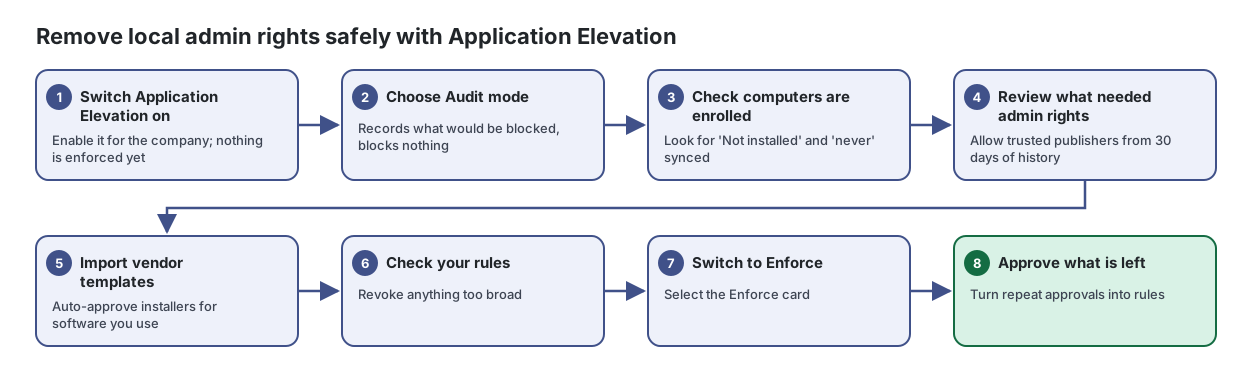
Steps
- Switch Application Elevation on. Enable it for the company; nothing is enforced yet
See at a glance how Application Elevation is running: which mode each company is in, how many computers are enrolled, what is waiting for approval, and which computers have administrator elevation switched on right now.
From the article: How to switch Application Elevation on for a company
- Select the company in the company selector.
- Select Enable Application Elevation.
- The page reloads into the dashboard. Go to Settings and pick an operating mode. Start with Audit.
- Choose Audit mode. Records what would be blocked, blocks nothing
Choose how Application Elevation runs for a company, how long approvals last, who is notified, and what users see.
- Check computers are enrolled. Look for 'Not installed' and 'never' synced
See which computers run the elevation agent, what mode each one is in, and change the mode for a single computer when it needs to differ from the company.
From the article: How to find computers that still need the agent
- Leave Enrolled devices only off.
- Sort by Enrolled. Devices showing "Not installed" do not have the elevation agent yet.
- Review what needed admin rights. Allow trusted publishers from 30 days of history
Before you switch to Enforce, see everything that needed administrator rights in the last 30 days and allow the common, trusted items in a click.
From the article: How to allow a trusted publisher
- Leave the grouping on Group by signer (publisher).
- Find the publisher in Top elevation candidates. The list is sorted by count, most frequent first.
- Select Allow.
- Check the Rule shown in the dialog, adjust Risk threshold (default 60) or Confidence (default 80) if needed.
- Select Create allow rule. The rule auto-approves future elevations that match, across the whole company.
- Import vendor templates. Auto-approve installers for software you use
Import ready-made rule packs for common business software so its installers and updaters run without prompting.
From the article: How to import a template
- Type the vendor's name in Filter templates by name or vendor….
- Select the template card.
- Review the rules in the dialog.
- Select Import all rules, then Import to confirm. A message confirms how many rules were imported.
- Check your rules. Revoke anything too broad
Decide in advance which programs may run with administrator rights, which are refused, and which need someone to approve them.
From the article: How to revoke a rule
- Find the rule in the list and select the bin icon.
- Confirm Revoke rule?. Computers stop honouring it on the next bundle push.
- Switch to Enforce. Select the Enforce card
From the article: How to move from Audit to Enforce
- Review the Audit Review page and allow the common items first.
- Select the Enforce card. The mode changes straight away.
- Alternatively, set Audit period (days) so Audit switches to Enforce by itself after that many days (0 means no automatic switch).
- Approve what is left. Turn repeat approvals into rules
Approve or deny requests from people who need to run a program with administrator rights, and turn good decisions into rules so the same request does not come back.
From the article: How to approve and create a rule at the same time
- Select Approve on the request.
- Tick Also create a rule from this request, or choose Permanent (create rule) as the TTL.
- In What should the rule match on?, pick Publisher, Signing certificate, MSI product, This exact file, This exact MSI, or Path. The most specific option is chosen for you.
- Select Approve.
When you are done
Computers are in Enforce mode, the software you use runs without prompts, and anything new comes to you for approval.
Articles for the pages in this guide
- Elevation Audit Review: Before you switch to Enforce, see everything that needed administrator rights in the last 30 days and allow the common, trusted items in a click.
- Application Elevation Dashboard: See at a glance how Application Elevation is running: which mode each company is in, how many computers are enrolled, what is waiting for approval, and…
- Elevation Devices: See which computers run the elevation agent, what mode each one is in, and change the mode for a single computer when it needs to differ from the company.
- Pending Elevation Requests: Approve or deny requests from people who need to run a program with administrator rights, and turn good decisions into rules so the same request does not…
- Elevation Rules: Decide in advance which programs may run with administrator rights, which are refused, and which need someone to approve them.
- Elevation Settings: Choose how Application Elevation runs for a company, how long approvals last, who is notified, and what users see.
- Elevation Vendor Templates: Import ready-made rule packs for common business software so its installers and updaters run without prompting.
Still need help?
Search the support centre, or contact our support team and tell us which step you are on:
- Chat now: use the chat button in the bottom-right corner of this page to reach our team right away. Where cookie consent is needed, the chat starts after you accept (cookie settings).
- Email: send our support team a message through the contact page. It goes straight to a person.
- Phone: AB: 1-403-538-5053, BC: 1-778-731-1339, ON: 1-289-724-8829, US: 1-406-988-7333, UK: +44 20 3695 9786.