Set up your help desk
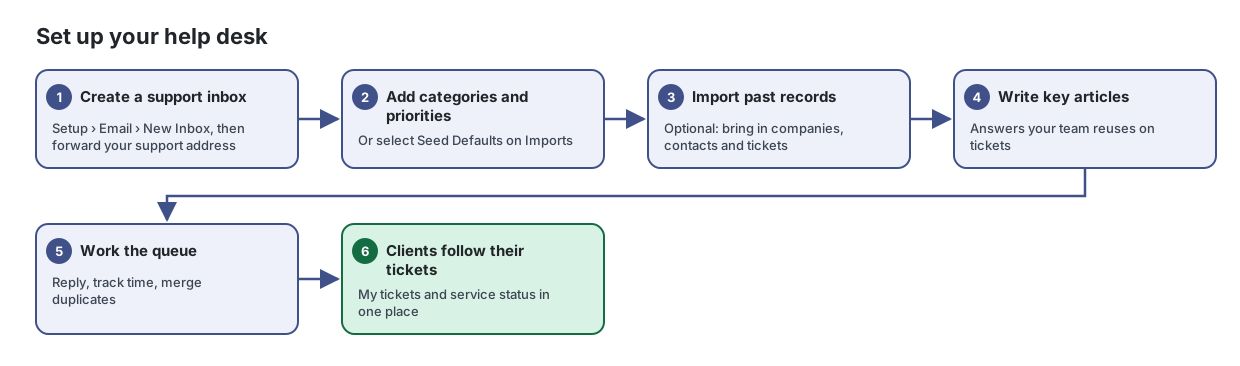
Set up your help desk: a support inbox, categories, past records, a knowledge base, and a place where clients follow their tickets.
A Lavawall® task guide: 6 steps across 4 console pages.
Before you start
- Who can do this: Anyone who can see the page
- Plan: Included with every Lavawall® account. Knowledge Base (included in Grow, Professional, and Complete). Help desk - unlimited ticketing (per named agent; add-on) or Help desk + ad-hoc remote support (per named agent; add-on). See pricing.
- Where to start: open HubSpot Integration in your console.
Steps
- Create a support inbox. Setup › Email › New Inbox, then forward your support address
Handle every client support request in one queue, from first email to billed time.
From the article: How to set up your help desk
- Select Setup.
- On Email, create a New Inbox. Each inbox gets its own support address; you can forward your existing support address to it, set a From name, auto-reply and Email signature, and use Domain Routing to map sender domains to client companies (Auto-populate from M365/GW can fill this in).
- On Categories and Priorities, add and colour your categories and priority levels. A lower level sorts as higher priority.
- On Imports, select Seed Defaults for a starter set, or open the ZenDesk and HubSpot imports. You can also turn on ZenDesk Two-Way Sync.
- On Classification, add rules that tag new email as human, automated, newsletter or likely-spam, then select Classify untagged tickets to apply them to older tickets.
- Add categories and priorities. Or select Seed Defaults on Imports
- Import past records. Optional: bring in companies, contacts and tickets
Bring your HubSpot companies, contacts, deals, tickets and knowledge base articles into Lavawall, matched to your clients.
From the article: How to import your data
- Select Sync Now. The page shows "Syncing data from HubSpot..." while it runs.
- When it finishes, check Sync Statistics and the Sync Log.
- Run Sync Now again whenever you want to bring in newer HubSpot records.
- Write key articles. Answers your team reuses on tickets
Write, organize and find your team's support articles in one place so answers are ready when a ticket comes in.
From the article: How to write a new article
- Select New.
- Type the Article title and a Short description.
- Write the body in the editor. Use the toolbar for headings, lists, tables, code blocks and images.
- Under Categories, type to pick an existing category, or type a new name and choose Create "…".
- Under Keywords, add keywords the same way, or select Auto-suggest keywords to have keywords suggested from the body text.
- Select Save. A title is required.
- Work the queue. Reply, track time, merge duplicates
From the article: How to reply to a ticket
- Select the ticket to open it.
- Type your reply in the box under Comments. Leave Public ticked to email the requester, or clear it for an internal note.
- Select Send & Close, or use the arrow beside it for Send & Leave Open, Send & Pending or Add Note (no email).
- Open Details & Edit to change status, company, requester, assignee, category, priority, CC addresses or tags.
- Clients follow their tickets. My tickets and service status in one place
See at a glance whether the services your organization relies on are up, follow your own support tickets, and reach your IT team.
From the article: How to follow up on your ticket
- In My tickets, select the ticket.
- Read the original request and the public updates from your IT team.
- Type in Add an update and select Send update.
When you are done
Support email becomes tickets in one queue, answers are ready in the knowledge base, and clients can see where their tickets stand.
Articles for the pages in this guide
- HubSpot Integration: Bring your HubSpot companies, contacts, deals, tickets and knowledge base articles into Lavawall, matched to your clients.
- Knowledge Base: Write, organize and find your team's support articles in one place so answers are ready when a ticket comes in.
- Service Status: See at a glance whether the services your organization relies on are up, follow your own support tickets, and reach your IT team.
- Tickets: Handle every client support request in one queue, from first email to billed time.
Still need help?
Search the support centre, or contact our support team and tell us which step you are on:
- Chat now: use the chat button in the bottom-right corner of this page to reach our team right away. Where cookie consent is needed, the chat starts after you accept (cookie settings).
- Email: send our support team a message through the contact page. It goes straight to a person.
- Phone: AB: 1-403-538-5053, BC: 1-778-731-1339, ON: 1-289-724-8829, US: 1-406-988-7333, UK: +44 20 3695 9786.