Run a Microsoft 365 access review
Review who can reach every SharePoint site, Team, and mailbox, then certify the access that should stay.
A Lavawall® task guide: 7 steps across 3 console pages.
Before you start
- Who can do this: Users with the Access Certification view permission; changing levels, approving and adding areas needs the Access Certification decide permission
- Plan: M365 Access Reviews (add-on, or included in Complete). SharePoint File Monitoring (add-on, or included in Complete). See pricing.
- Where to start: open Access Certification in your console.
Steps
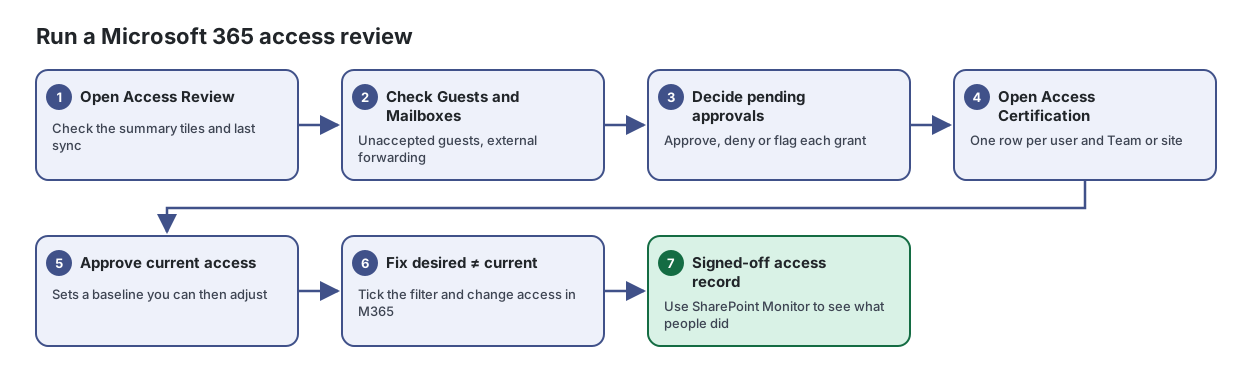
- Open Access Review. Check the summary tiles and last sync
See who can reach every SharePoint site, Team, folder and mailbox in your Microsoft 365 tenant, and approve or deny each grant.
From the article: How to see who has access to a site or Team
- Open the Overview tab.
- Find the site in the list, or pick it in Resource and click Apply.
- Check the Type badge: Team site, SharePoint site or OneDrive.
- Click the row to expand it and see the site's SharePoint groups (Owners, Members, Visitors) and the members of its backing group.
- Check Guests and Mailboxes. Unaccepted guests, external forwarding
From the article: How to review guests and mailboxes
- Open the Guests tab to see each guest's Email / UPN, State, Invited by, Last login and Last access. A not accepted badge means the guest never accepted the invitation.
- Open the Mailboxes tab to see Shared mailboxes, Delegation and Forwarding. Look for flags such as external delegate, external forwarding and keeps a copy in mailbox.
- Decide pending approvals. Approve, deny or flag each grant
From the article: How to approve, deny or flag access
- Open the Approvals tab. Tick Guests only to focus on guest access.
- For each grant, click the approve button, the deny button (you can enter an optional reason), or the flag button to mark it for an administrator to remove.
- If removal is enabled for your organization and you have permission, click the remove button and confirm to queue a real removal in Microsoft 365. It runs on the next collection cycle.
- Open Access Certification. One row per user and Team or site
Record, for every user and every Team or SharePoint site, the access they should have and whether it is approved.
From the article: How to certify access
- Filter to what you want to review, for example Microsoft Teams and Pending.
- For each row, compare Current with what the person needs.
- Change Desired if the access should be different. An amber dot appears when desired differs from current.
- Set Approved to Approved or Denied. The change saves immediately.
- Approve current access. Sets a baseline you can then adjust
From the article: How to approve all current access at once
- Click Approve current access.
- Confirm. Every Teams and SharePoint item is marked Approved at its current detected level.
- Adjust individual rows afterwards if needed.
- Fix desired ≠ current. Tick the filter and change access in M365
From the article: How to find access that needs to change
- Tick Only desired ≠ current.
- The list shows only rows where the approved access differs from what Microsoft 365 currently allows. Use this list to make the changes in Microsoft 365, or use Access Review to remove access.
- Signed-off access record. Use SharePoint Monitor to see what people did
See who viewed, changed, deleted or shared files on your SharePoint sites, and when and from where.
From the article: How to investigate one person's activity
- Expand Activity by User to see who is most active.
- Type the person's name or email in Search.
- Click Read events to look for unusual downloads or views.
- Use Jump to to go to a specific date.
When you are done
Every grant has been approved, denied, or flagged, and you have a signed-off access record for your auditor.
Articles for the pages in this guide
- Access Certification: Record, for every user and every Team or SharePoint site, the access they should have and whether it is approved.
- Access Review: See who can reach every SharePoint site, Team, folder and mailbox in your Microsoft 365 tenant, and approve or deny each grant.
- SharePoint Monitor: See who viewed, changed, deleted or shared files on your SharePoint sites, and when and from where.
Still need help?
Search the support centre, or contact our support team and tell us which step you are on:
- Chat now: use the chat button in the bottom-right corner of this page to reach our team right away. Where cookie consent is needed, the chat starts after you accept (cookie settings).
- Email: send our support team a message through the contact page. It goes straight to a person.
- Phone: AB: 1-403-538-5053, BC: 1-778-731-1339, ON: 1-289-724-8829, US: 1-406-988-7333, UK: +44 20 3695 9786.