Compliance API & Webhooks
Connect your compliance data to other systems: give them an API token to read controls, risks and evidence, and send events to Slack, Teams or your own endpoint as they happen.
What the page is for
API tokens let another system, such as a ticketing tool or reporting dashboard, read this company's compliance data or create tasks and link evidence. Each token has scopes that limit what it can do and expires after at most a year. A token is shown once, when it is created.
Webhooks send an HTTPS message to an address you choose whenever a selected compliance event happens. Slack and Microsoft Teams incoming-webhook addresses get a short text message; any other address gets a signed JSON document. Failed deliveries are retried automatically, and every delivery is logged.
A third tab, Using the API, documents the requests and shows how to verify a webhook's signature.
What you see
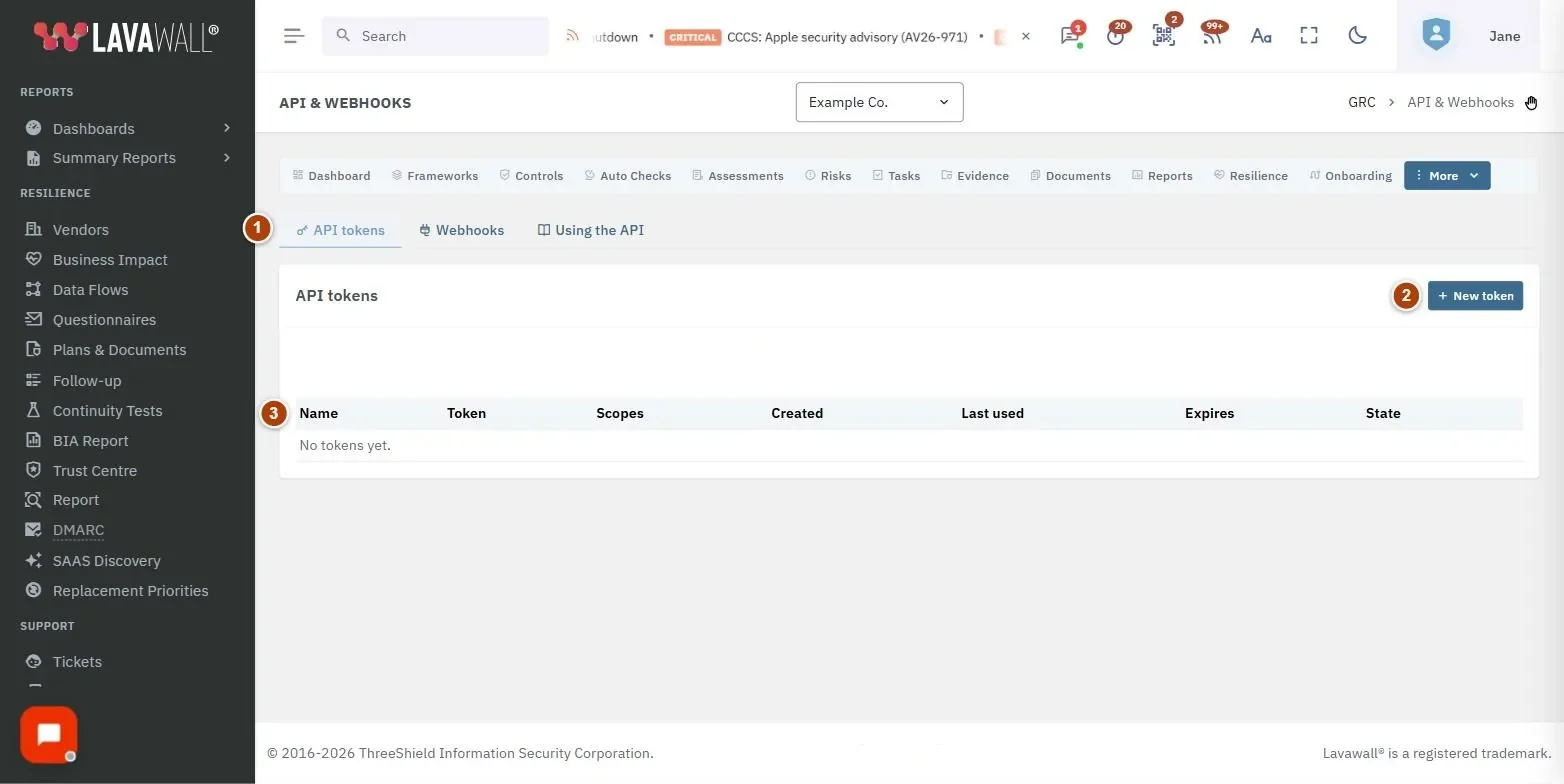
- Tabs: API tokens, Webhooks and Using the API.
- New token / New webhook: the add button at the top of each tab.
- Tokens and webhooks tables: API tokens: Name, Token (prefix only), Scopes, Created, Last used, Expires, State and Revoke. Webhooks: Address (masked), Format, Events, Last delivery, Waiting, State, with Test, Log (the delivery log, with Retry) and More (Edit address or events, Switch off or on, Rotate secret, Delete).
- Webhook editor: Address (https) and Events, with Select all.
How to use Compliance API & Webhooks
How to create an API token
- On API tokens, select New token.
- Enter a Name that says what uses it, for example "Ticketing system sync".
- Choose Scopes. read is ticked by default; add write:tasks or write:evidence only if needed.
- Choose Expires after: 30 days, 90 days (default), 180 days or 1 year (the maximum).
- Select Create token, then copy it. Select I have copied it when done; it will not be shown again.
How to revoke a token
- Select Revoke on the token's row and confirm. Anything using it stops working at once.
How to send compliance events to Slack or Teams
- On Webhooks, select New webhook.
- Paste the Slack or Teams incoming-webhook address into Address (https).
- Tick the Events you want, or Select all.
- Select Save and copy the signing secret shown once.
- Select Test to send a test message.
How to check or retry deliveries
- Select Log on the webhook.
- For a failed delivery, select Retry. It goes out on the next delivery run.
How to rotate a webhook's signing secret
- Select More, then Rotate secret, and confirm.
- Copy the new secret and update the receiving system; it rejects deliveries until it has the new secret.
Tips
- Treat Slack and Teams webhook addresses as secrets. After saving, the address is masked and cannot be viewed again; enter a new one only to replace it.
- Webhook addresses must be reachable on the public internet over HTTPS on port 443 or 8443. Private network addresses are refused.
- Failed deliveries are retried after 1 minute, 5 minutes, 30 minutes, 2 hours and 12 hours. After 20 failures in a row the webhook is switched off and its creator is emailed.
- Each delivery carries an X-Lavawall-Signature header; the Using the API tab shows how to check it.
- API responses use UTC times and page with a limit of 1 to 200 items per request.
Troubleshooting
- "Only a GRC administrator can manage API tokens and webhooks for this company.": Ask a GRC administrator, or have your GRC role changed in Compliance Settings.
- "This company already has 25 active tokens.": Revoke one you no longer use.
- "This company already has 10 webhooks.": Delete one first.
- "That is ten test messages in ten minutes.": Wait a few minutes before testing again.
- "Test not delivered": The receiver did not accept the message. Check the address and that the receiving service is up.
Related articles
Still need help?
Search the support centre, or contact our support team and tell us which page you were on.
Names, companies, devices and figures in the pictures are examples. Other product and company names are trademarks of their respective owners.