Compliance Contacts
Keep one list of everyone who holds a compliance role, such as your Privacy Officer or external auditor, whether or not they have a console login.
What the page is for
Auditors often ask "who is your designated Privacy Officer?" or "who is responsible for security?". This page answers that. It lists console users and external contacts together, with each person's organization, job title and compliance roles.
External contacts, such as an auditor, an assessor or a fractional privacy officer, do not need a console account. You can give them a role here for documentation, and invite them to a limited sign-in: they receive an email link and confirm with a six-digit code sent to the same address. It is not a console account, and you can revoke it at any time.
What you see
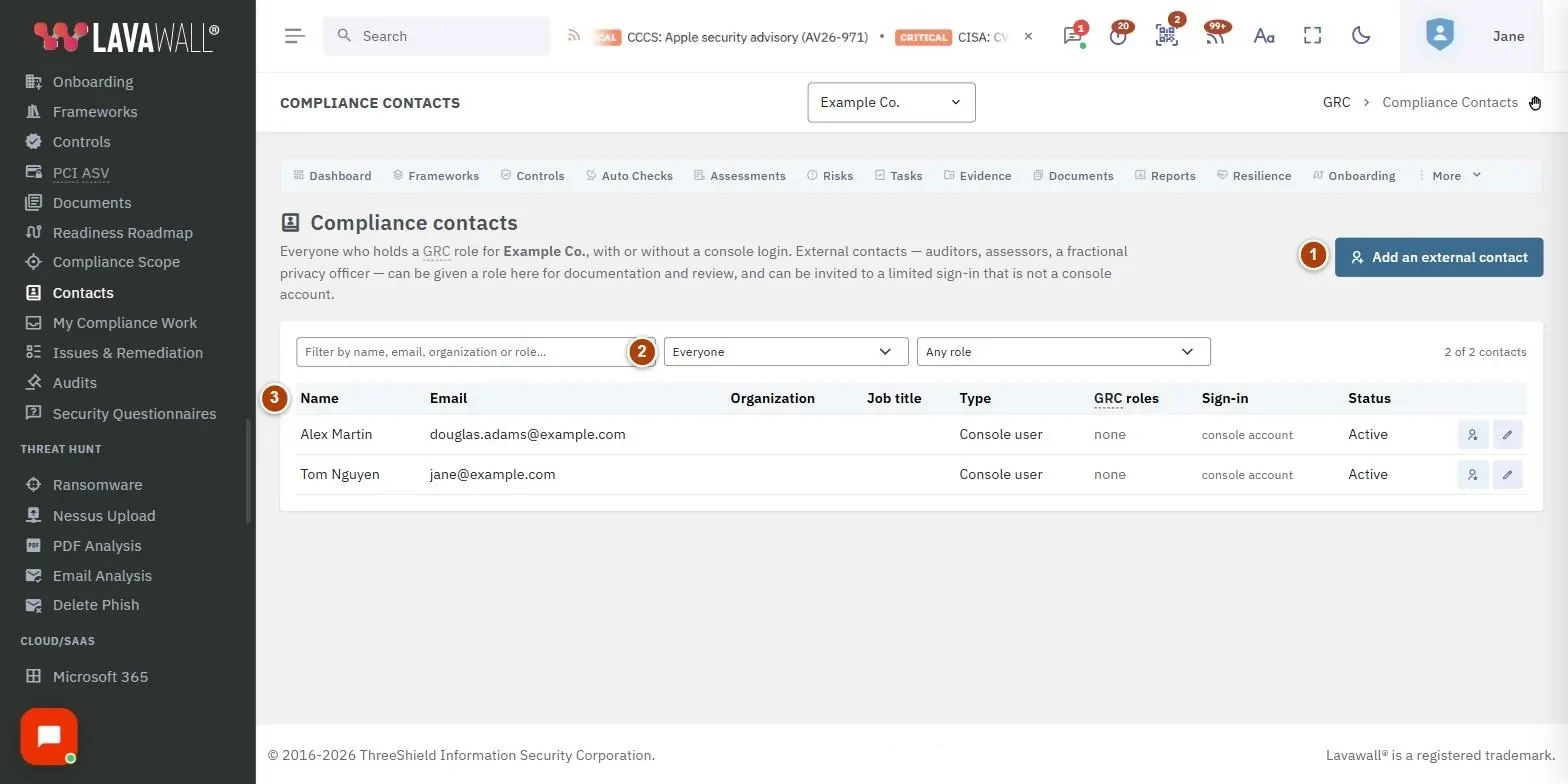
- Add an external contact: adds someone without a console login.
- Filters: search by name, email, organization or role; Everyone, Console users or External contacts; and Any role.
- Contacts table: Name, Email, Organization, Job title, Type, GRC roles, Sign-in, Status and actions. Every column sorts.
- Row actions: Set GRC roles, Edit details, Invite to a limited sign-in (or Re-send the sign-in link), Revoke the sign-in, and Remove this contact.
How to use Compliance Contacts
How to add an external auditor
- Select Add an external contact.
- Enter Name, Email, Organization, Job title and any Notes.
- Select Save.
How to assign a compliance role
- Select Set GRC roles (the star icon) on the person's row.
- Choose one or more roles. Hold Ctrl (or Cmd) to choose more than one.
- Select Save roles.
How to invite an external contact to sign in
- Select Invite to a limited sign-in on their row.
- Choose Access expires after: 7, 30 (default), 90 or 180 days.
- Select Send the invitation. The Sign-in column changes to "invited".
How to end someone's access
- Select Revoke the sign-in and confirm. They are signed out immediately and the link stops working.
- To take them off the list completely, select Remove this contact.
Tips
- Sign-in status: "console account" for users, "not invited", green "invited", amber "expired" and red "revoked" for external contacts. Hover to see the expiry and last sign-in.
- A console user's name and email come from their console account and are changed in Users & Permissions.
- Sending a new invitation replaces the old link, which stops working immediately.
- These roles describe who does what. They do not grant powers in the compliance module; those come from each user's GRC role in Compliance Settings.
Troubleshooting
- "No GRC roles have been defined for this organization yet.": Define roles first, then assign them.
- "This contact has an active sign-in link. Revoke it before changing their email address.": Revoke, change the email, then invite again.
- "That person has a console account. Remove them in Users & Permissions instead.": Console users cannot be removed here.
- "The invitation was created but the email could not be sent.": Try sending it again.
- "Could not save that contact. Is that email address already on the list?": Each email can appear only once.
Task guides that use this page
Related articles
Still need help?
Search the support centre, or contact our support team and tell us which page you were on.
Names, companies, devices and figures in the pictures are examples. Other product and company names are trademarks of their respective owners.