Audits
Run an audit from start to finish: the auditor's request list, the evidence for each request, Type II samples, findings, external auditor access and the final evidence package.
What the page is for
The Audits page manages audit engagements. Each engagement has a framework, an audit type, a period and an audit firm, and holds the auditor's list of requests (often called the PBC or "provided by client" list). For each request you assign an owner and due date, link or upload evidence, ask someone outside the console for it, and submit it to the auditor, who accepts it or returns it.
You can build the request list from an internal assessment or a framework, generate it from a framework, or import the auditor's own spreadsheet. Collect evidence automatically fills in what Lavawall can already provide.
External auditors can be invited to a private portal for this engagement only. Each visit needs a code emailed to them, and every view and download is logged. You choose what each auditor may do. Findings raised during the audit are tracked with a management response and can be turned into issues. When the engagement is finished, you can lock it and export the evidence package.
What you see
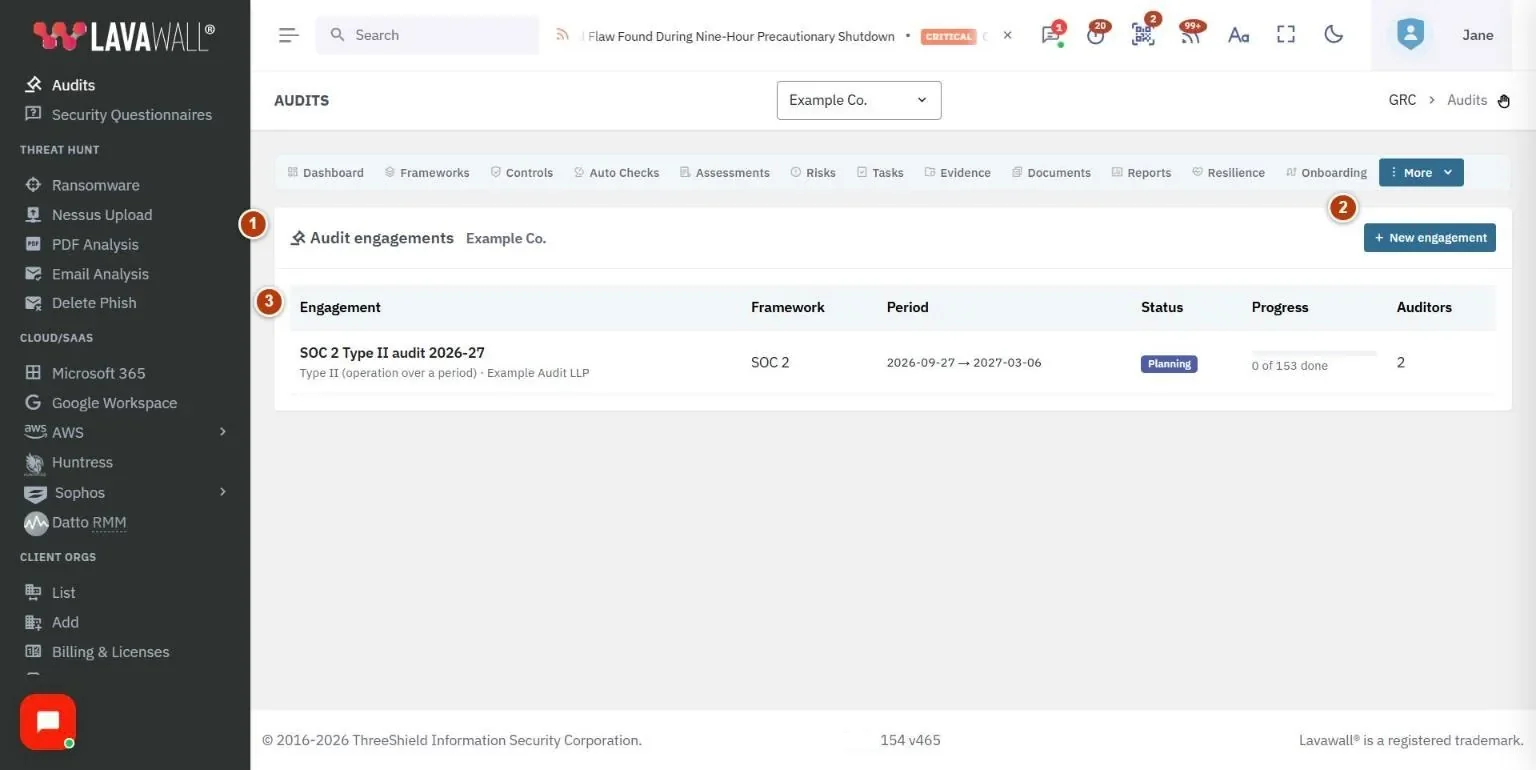
- Audit engagements: the list of engagements with Engagement, Framework, Period, Status, Progress and Auditors, and New engagement.
- Engagement header: title and details, with Edit, Collect evidence automatically, Lock and Export (Evidence package (.zip), Evidence index (.pdf), Request list (.xlsx)).
- Tabs: Requests, External auditors, Findings and Details.
- Requests: filters (All statuses, Mine), Build requests from…, Generate from framework, Import spreadsheet, New request, and the table of Request, Title, Owner, Due and Status.
- Request dialog: tabs for Details, Control design, Evidence, Samples, Comments and History.
- External auditors: Invite auditor, sharing of control designs (Share all, Withdraw all), and the table of Auditor, Can, Expires, Last visit and State.
How to set up an engagement
- Select New engagement.
- Enter the Title, choose the Framework (only your active frameworks are listed) and Audit type, and set Period start, Period end, Status and Audit firm.
- Add Notes (scope, contacts, milestones). External auditors see these notes as the engagement scope.
- Select Save.
How to build the request list
- Open the engagement and stay on Requests.
- Choose one of:
- Build requests from…: from An internal assessment or A framework, then Build the requests.
- Generate from framework.
- Import spreadsheet: upload the auditor's list, Match the columns, check the Preview and select Import.
- New request: add one by hand.
- Select Collect evidence automatically to link evidence Lavawall already has.
How to answer a request
- Click a request to open it and set its owner and due date on Details, then Save request.
- On Evidence, use Link existing evidence (search and link), Upload new evidence (then Upload and link), or Request it from someone (then Send request).
- Use Comments to discuss with the auditor, and Management response where one is needed.
- Select Submit to auditor. The auditor (or someone with audit permission) selects Accept or Return to owner. Whoever owns or submitted a request cannot accept it themselves. Other status buttons include Start work, Reopen and Not applicable.
How to draw a Type II sample
- Open the request and go to Samples.
- Select Show population to see the items the sample is drawn from.
- Select Draw sample, then mark each sampled item as it is tested.
How to invite an external auditor
- Open External auditors and select Invite auditor.
- Enter their Email, Name and Firm.
- Choose what they can do: Can download evidence files, Can comment on requests, Can add new requests, Can raise findings and Can evaluate the control designs shared with them.
- Set Access ends (defaults to 90 days after the period ends) and select Send invitation.
- On Details, under What the external auditor may do with evidence, choose View only. or Downloads allowed. and select Save settings.
How to handle findings
- Open Findings and select Raise finding, or open one the auditor raised.
- Record the Management response and select Save the response.
- Select Open an issue from this finding to track the fix in Issues & Remediation.
- When it is resolved, select Close.
Tips
- Lock the engagement when the audit is complete. A locked engagement refuses changes to its requests, samples and evidence links.
- Downloads for an auditor must be allowed both on their invitation and for the whole engagement.
- Download this request's evidence in a request gives you just that request's files.
- Use Mine to see only the requests you own.
- Set How long management has to answer a finding on the Details tab.
Troubleshooting
- I can't accept a request I submitted. Separation of duties stops owners and submitters accepting their own work, unless your company allows self-approval and you give a reason.
- Changes are refused. The engagement is locked.
- The auditor can't download files. Turn on Can download evidence files for them and choose Downloads allowed. in the engagement settings.
- A framework is missing from the list. Only your company's active frameworks can be chosen. Adopt it on the Frameworks page first.
Task guides that use this page
Related articles
Still need help?
Search the support centre, or contact our support team and tell us which page you were on.
Names, companies, devices and figures in the pictures are examples. Other product and company names are trademarks of their respective owners.