Remote Access for users
Let the people you support connect to their own work computers from home or on the road, with the rules you set.
What it is for
Remote Access for users is part of the Lavawall® console. Lavawall is the RMM, security, and compliance platform from ThreeShield, built and hosted in Canada. About remote support.
It replaces a separate remote access tool for staff who need their office computer while they are away from it. People open the Service Status page, choose a computer under My computers and click Connect. The desktop opens in their browser. There is nothing to install on the computer they are using.
They get the remote desktop and nothing else: no device details, shell, Admin Workspace, scripts or other people's information. You decide which computers each person can reach, whether they can copy files and the clipboard, and where they can connect from.
What people see
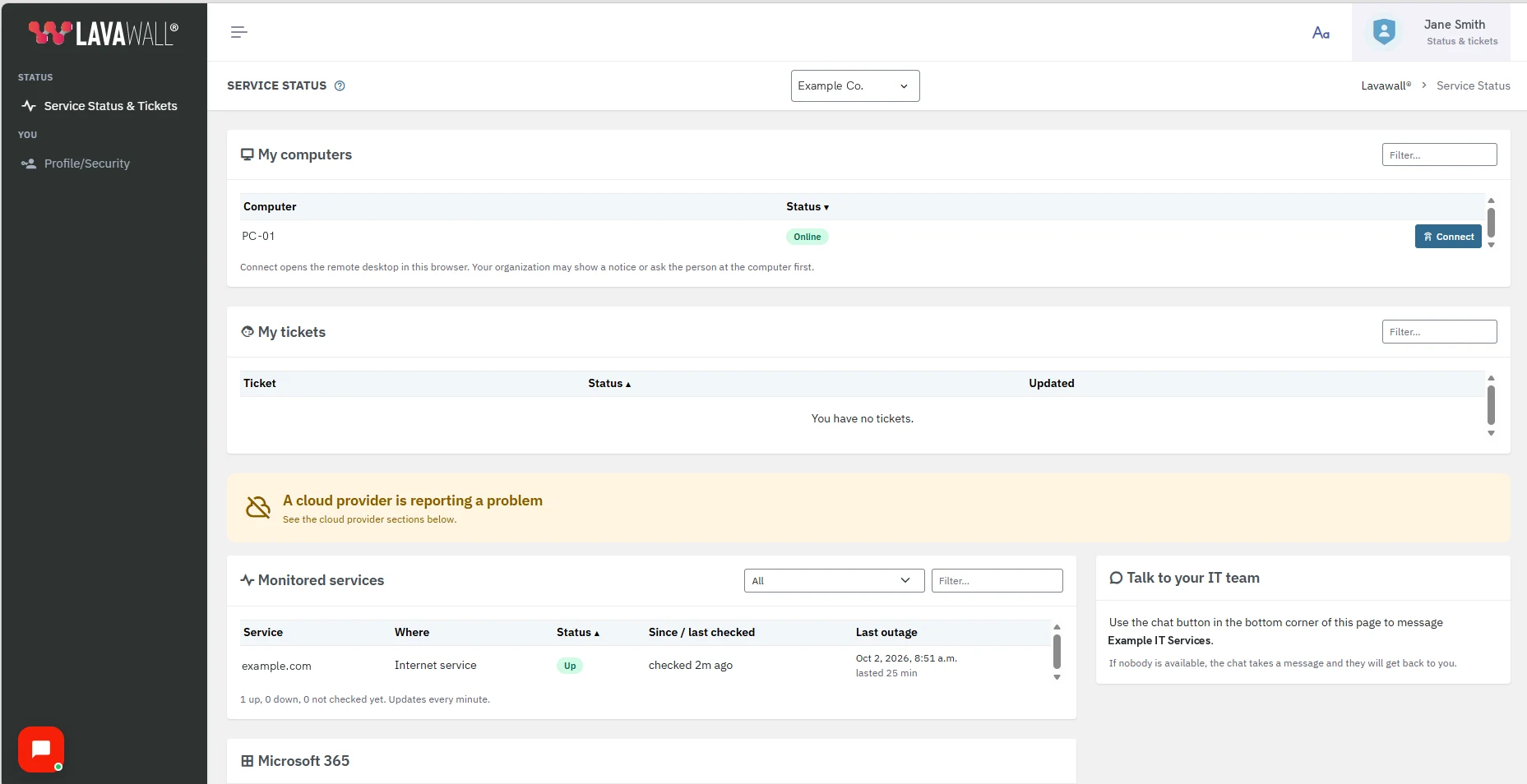
- My computers on Service Status: each computer they can reach, whether it is Online or Offline, and a Connect button.
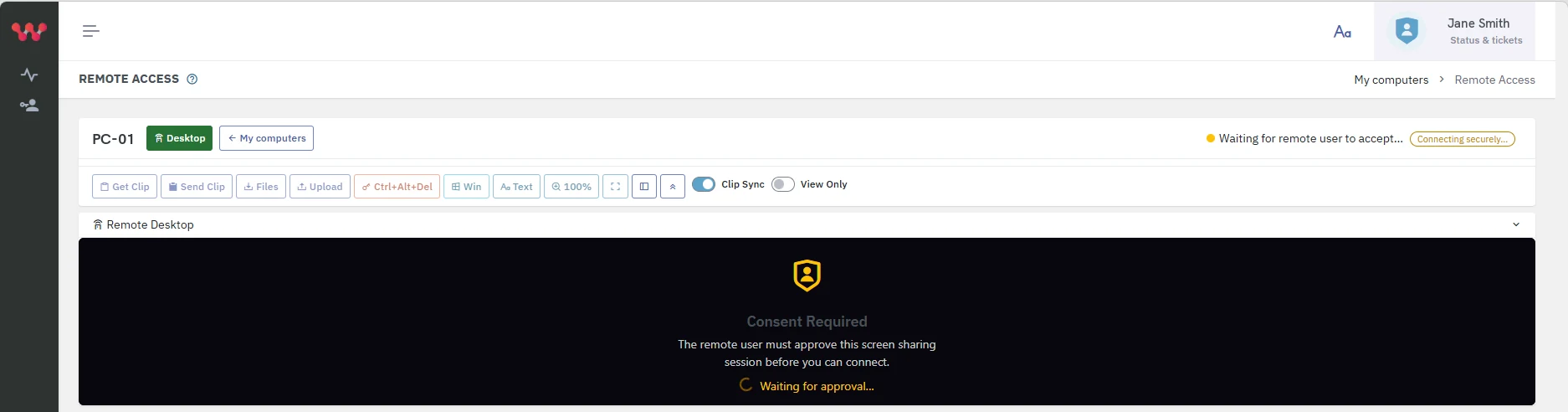
- Waiting for remote user to accept, when the computer asks the person sitting at it first.
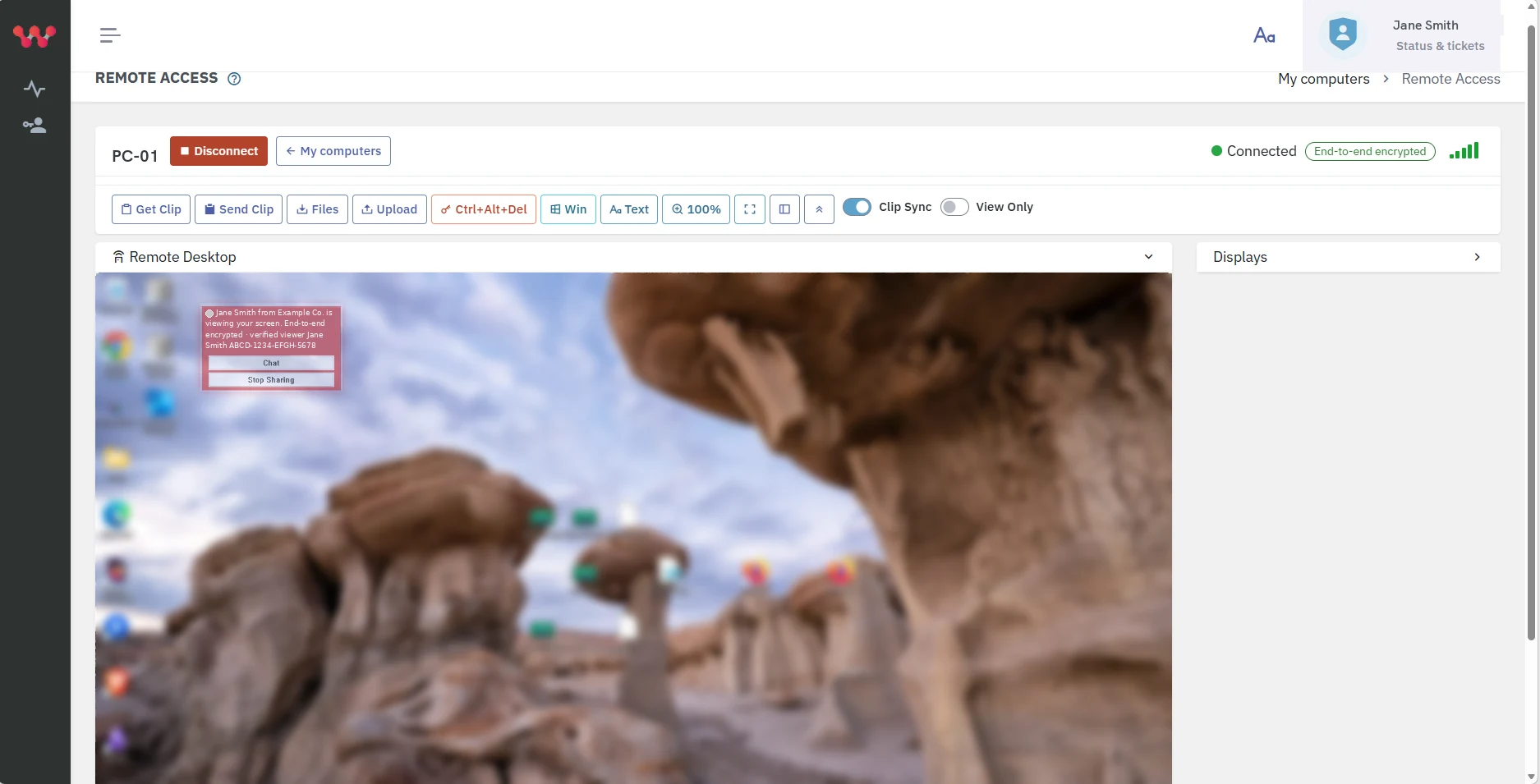
- The remote desktop: the computer's screen, keyboard and mouse, with every display when it has more than one, and a notice on the computer saying who is connected, with Chat and Stop Sharing buttons.
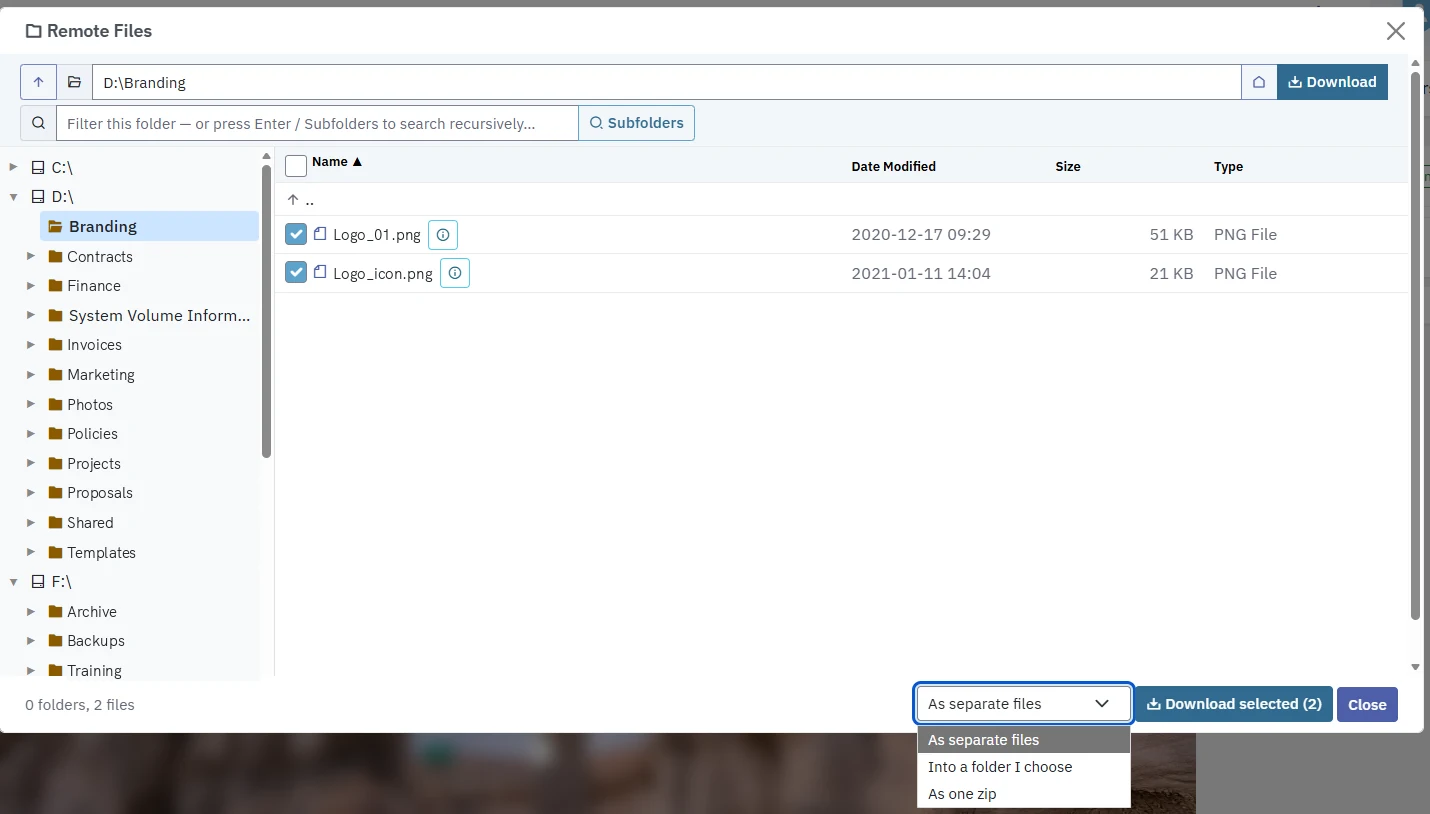
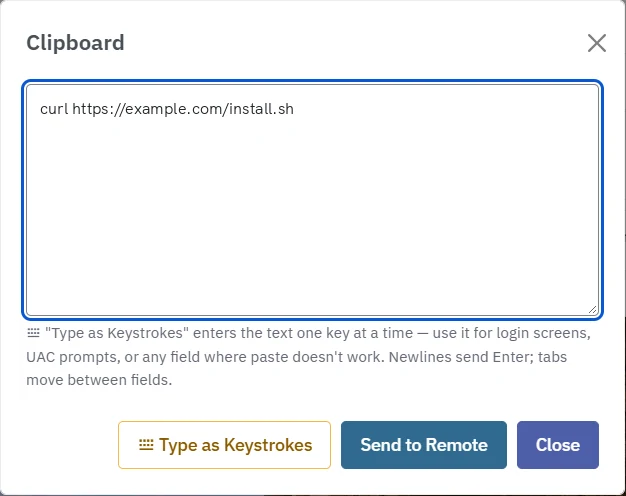
- Toolbar: Ctrl+Alt+Del, Win, Text, zoom, full screen and the View Only switch, and, when allowed, Get Clip, Send Clip, Clip Sync, Files and Upload.
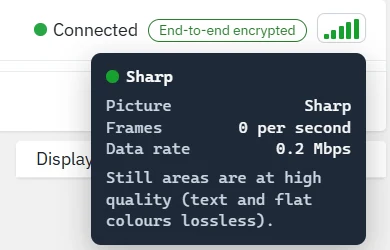
- Disconnect and My computers buttons, to end the session or go back to the list, and a signal-strength meter for the connection quality.
How to set it up
Set the rules for your organization
- Open Access Policy and scroll to Remote Access for users.
- Turn on Allow Remote Access for users in this organization.
- Under What the computer shows, choose A notice; ask first if someone is signed in (the default), A notice only; never ask, or Always ask first. A notice with the person's name stays on screen for the whole session.
- Optionally tick Connect anyway if nobody answers within 30 seconds (the session then starts by itself after 30 seconds), and Lock the computer when the session ends (Windows; off by default).
- Choose the Sign-in requirement. The default is an authenticator app or passkey.
- Set whether file transfer and the clipboard are allowed by default, and limit the networks and countries people can connect from if you want to.
- Click Save Remote Access for users.
These rules are separate from the rules for technicians. Organizations under yours use your rules until they save their own.
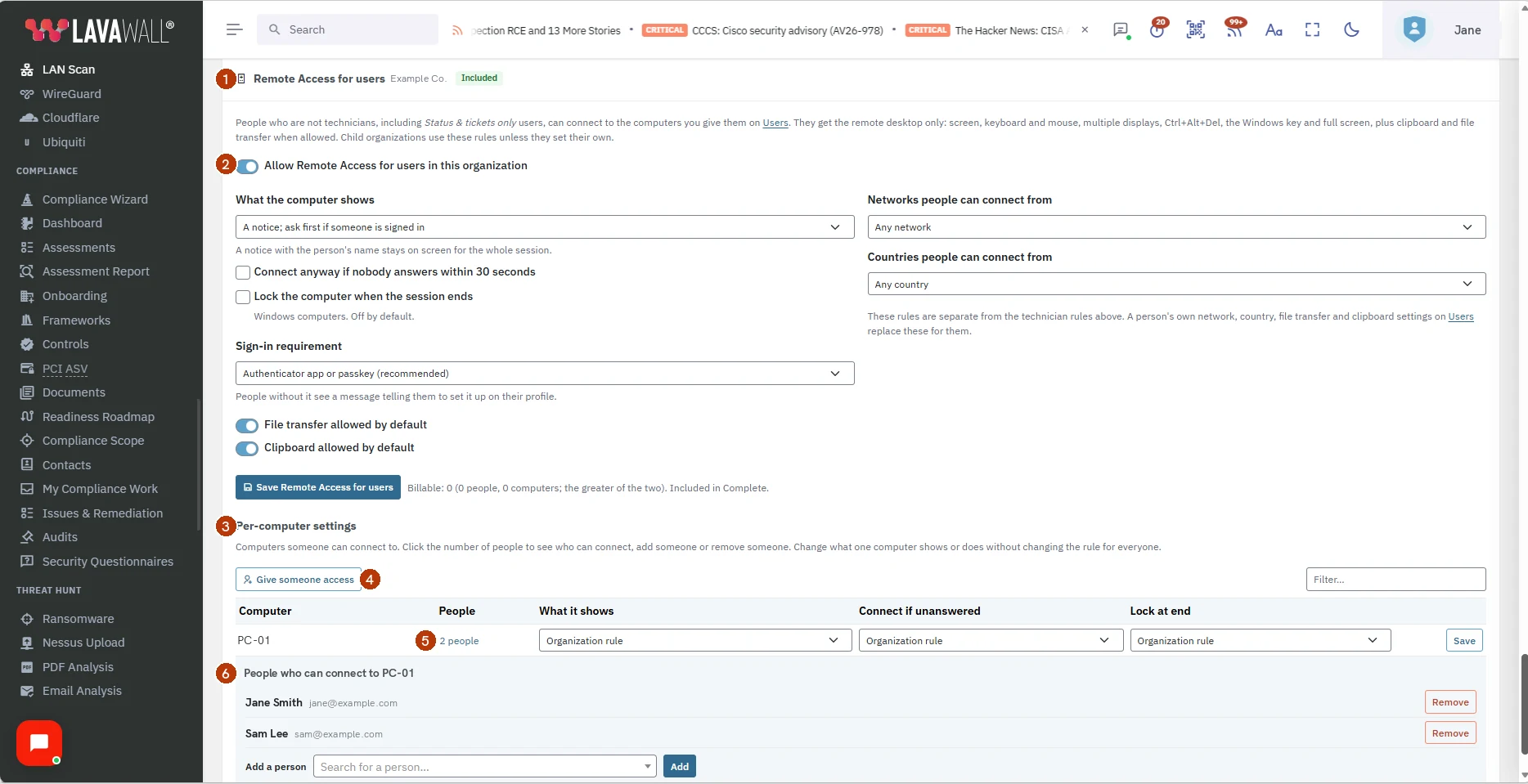
- Remote Access for users, with the organization's name and whether it is in the plan.
- Allow Remote Access for users in this organization, and below it the rules: what the computer shows, sign-in, file transfer, clipboard, networks and countries.
- Per-computer settings: the computers someone can connect to, with what each one shows and does.
- Give someone access: choose any computer, then add the first person.
- The People count: click it to see who can connect.
- People who can connect: Remove beside each person, and Add a person to search for someone and add them.
Give a person access to their computers
- Open Users and edit the person.
- In Remote Access for users, turn on Allow remote access for this person.
- Tick the computers they can connect to. Use the filter to find a computer by name.
- Optionally change File transfer, Clipboard, Networks they can connect from and Countries they can connect from for this person. Their settings replace the organization's.
- Click Save.
Add or remove people for one computer
- On Access Policy, find the computer under Per-computer settings. If nobody has it yet, click Give someone access and choose the computer.
- Click the number of people in the People column to see who can connect.
- To add someone, choose them under Add a person and click Add.
- To take access away, click Remove beside the person and confirm.
Adding or removing people here needs permission to manage users, the same as on Users. You can add people from the computer's own organization, or from the organization above it. If remote access is turned off for a person on Users, you'll be reminded to turn it on there.
Change the rules for one computer
- On Access Policy, find the computer under Per-computer settings.
- Change What it shows, Connect if unanswered or Lock at end. Organization rule follows the setting above.
- Click Save on that row.
Connect to your computer (for the person)
- Sign in to the console and open Service Status.
- Under My computers, click Connect beside the computer.
- Wait for the desktop to appear. If someone is signed in at the computer, they may be asked to allow the connection first.
- Click Disconnect when you are done.
Tips
- Every grant, settings change, connection, refused connection and file transfer is recorded in the Activity Log.
- If a technician is already connected to the computer, the person sees that it is busy, unless the computer is set to A notice only; never ask.
- Linux computers can't be chosen, because remote desktop is not available for them.
- Billing counts people and computers that are set up across your organization and its clients, and charges for whichever number is higher.
Troubleshooting
- "Remote access is not available for your account."
- Remote access is turned off for you or your organization, or it is not part of your organization's plan. Ask your IT administrator.
- "You do not have access to that computer."
- The computer was removed from your list. Go back to My computers.
- "Set up an authenticator app or a passkey on your profile first."
- Your organization requires a second sign-in factor for remote access. Add one on your profile, then try again.
- "Remote access is not allowed from this network." or "from your country."
- Your organization limits where you can connect from. Connect from an approved location or ask your IT administrator.
- The Connect button is greyed out.
- The computer is off, asleep or not connected to the internet right now.
- "No computers have been set up for you yet."
- Ask your IT administrator to choose your computers on the Users page.
Related articles
Still need help?
Search the support centre, or contact our support team and tell us which page you were on:
- Chat now: use the chat button in the bottom-right corner of this page to reach our team right away. Where cookie consent is needed, the chat starts after you accept (cookie settings).
- Email: send our support team a message through the contact page. It goes straight to a person.
- Phone: AB: 1-403-538-5053, BC: 1-778-731-1339, ON: 1-289-724-8829, US: 1-406-988-7333, UK: +44 20 3695 9786.