Launch security awareness training and a phishing test
Assign security awareness training, run a safe phishing test, and report on who has finished.
A Lavawall® task guide: 7 steps across 5 console pages.
Before you start
- Who can do this: People with training administration rights; creating and editing bundles needs permission to manage training
- Plan: Security Awareness Training + Phishing Reporter (add-on, or included in Complete). Phishing Reporter (add-on, or included in Complete). See pricing.
- Where to start: open Course Bundles in your console.
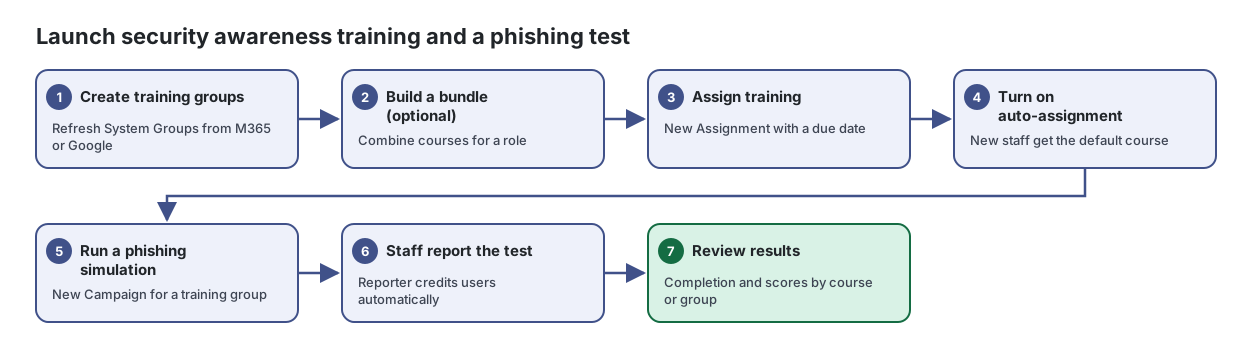
Steps
- Create training groups. Refresh System Groups from M365 or Google
Assign security awareness courses to staff, track who has finished, and keep training up to date automatically.
From the article: How to set up training groups
- Open Training Groups. The system groups All Users, M365 Licensed Users, Google Workspace Users and New Users Without Training are created for you; click Refresh System Groups to create or update them.
- Click New Group to make your own, fill it in and click Save Group.
- Use the row menu to Sync Now, open the Group Report or Delete Group. Sync Groups at the top syncs them all.
- Build a bundle (optional). Combine courses for a role
Group several training courses into one bundle that you can assign, track and certify as a single item.
From the article: How to create a bundle
- Click New Bundle.
- Enter a Title. Leave Bundle Code blank to have one generated.
- Add a Description saying who the bundle is for.
- Set the Passing Score % and tick Certificate if learners should get one.
- In Add Courses, search for each course and click its add button.
- Drag the courses in Courses in this Bundle into the right order.
- More steps in the article
- Assign training. New Assignment with a due date
From the article: How to assign training to a group
- Open Assignments and click New Assignment (or choose Assign to Group on a course card).
- Choose the Course or Combo. Starred items are suggested for this company.
- Choose a Training Group, or All Company Users.
- Set a Due Date, an optional Language Override and Reminder Days Before Due.
- Leave Send invitation emails immediately ticked to email people now.
- To require a policy, tick Require policy acknowledgement for this assignment and choose the Policy to Acknowledge.
- More steps in the article
- Turn on auto-assignment. New staff get the default course
From the article: How to automate training for new staff
- Open Settings.
- Under Auto-Assignment Settings, tick Auto-assign default course to new licensed users and choose the Default Course for New Users.
- Under Completion & Expiry, set Training Expiry (days) so people are re-enrolled automatically, and Reminder Days Before Due Date.
- Click Save Settings.
- Run a phishing simulation. New Campaign for a training group
Send realistic, safe phishing tests to your staff, see who clicks, and show them what to look for next time.
From the article: How to run a phishing simulation
- On Campaigns, click New Campaign.
- Enter a Campaign Name.
- Choose an Email Template and, optionally, an Educational Landing Page (or keep the default).
- Under Who to target, choose Training Groups and tick groups, Individual Emails and search for people, or All Active Users.
- Set Schedule Send, or leave it blank to keep a draft.
- Click Create Campaign, or Save as Draft to finish later.
- More steps in the article
- Staff report the test. Reporter credits users automatically
Give every Outlook user a button to check and report suspicious email, and review everything they report in one place.
- Review results. Completion and scores by course or group
See who has completed their security awareness training, who is behind, and who has agreed to your policies, and export it for your records.
From the article: How to report on one course or group
- Choose the course in Course, or a team in Group (or both).
- Select Filter.
- Read the summary cards for the totals and the table for the individual people.
When you are done
Staff are enrolled, new staff are assigned training automatically, and you have results by course or group.
Articles for the pages in this guide
- Course Bundles: Group several training courses into one bundle that you can assign, track and certify as a single item.
- Phishing Reporter: Give every Outlook user a button to check and report suspicious email, and review everything they report in one place.
- Phishing Simulations: Send realistic, safe phishing tests to your staff, see who clicks, and show them what to look for next time.
- Training Management: Assign security awareness courses to staff, track who has finished, and keep training up to date automatically.
- Training Reports: See who has completed their security awareness training, who is behind, and who has agreed to your policies, and export it for your records.
Still need help?
Search the support centre, or contact our support team and tell us which step you are on:
- Chat now: use the chat button in the bottom-right corner of this page to reach our team right away. Where cookie consent is needed, the chat starts after you accept (cookie settings).
- Email: send our support team a message through the contact page. It goes straight to a person.
- Phone: AB: 1-403-538-5053, BC: 1-778-731-1339, ON: 1-289-724-8829, US: 1-406-988-7333, UK: +44 20 3695 9786.