Add a user and make sure they sign in securely
Add a colleague and make sure they sign in securely from the start.
A Lavawall® task guide: 7 steps across 5 console pages.
Before you start
- Who can do this: Super Admin, or a user who has been given the Access Policy permission
- Plan: Included with every Lavawall® account. Password Vault (per user; add-on, or included in Complete). See pricing.
- Where to start: open Access Policy in your console.
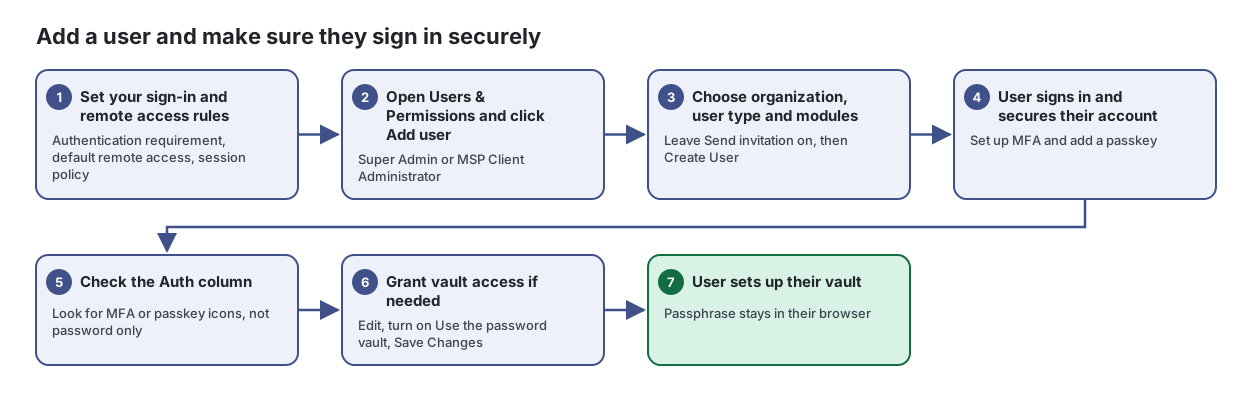
Steps
- Set your sign-in and remote access rules. Authentication requirement, default remote access, session policy
Decide who can reach the Lavawall console and remote support, from where, and how strongly they must sign in.
From the article: How to set remote access for new users
- In User Defaults, choose Default remote access for new users: all companies, client companies only, own company only, or no remote access (the choices depend on whether you manage client companies).
- MSPs: choose whether to Allow client company users to remote their own company's devices.
- Click Save Policy. Change individual users on Users & Permissions.
- Open Users & Permissions and click Add user. Super Admin or MSP Client Administrator
See everyone who can sign in to Lavawall for your company and your clients, and control what each person can do.
- Choose organization, user type and modules. Leave Send invitation on, then Create User
Give a colleague or client their own Lavawall sign-in, with the right role and only the modules they need.
From the article: How to limit which modules a user can open
- Under Module Permissions, turn on the switch for each module the user should have. Turning any on switches Unrestricted off automatically.
- To give access to everything the organization subscribes to, turn Unrestricted back on.
- Click Create User. You can change this later from Edit on Users & Permissions.
- User signs in and secures their account. Set up MFA and add a passkey
Keep your contact details current and control how you sign in: password, passkeys, authenticator app and linked Microsoft or Google accounts.
From the article: How to add a passkey
- Open Passkeys.
- Click the add button and follow your browser's prompt to use your fingerprint, face, Windows Hello, phone or a hardware key.
- Your new passkey appears under Saved Passkeys. If your organization requires a certain kind of security key, the tab tells you which kinds are accepted.
- Check the Auth column. Look for MFA or passkey icons, not password only
- Grant vault access if needed. Edit, turn on Use the password vault, Save Changes
From the article: How to edit a user and their permissions
- Click Edit on the user's row.
- Update their details, Organization, Role or Account Status.
- Turn permissions on or off: Feature Permissions (CRM, Help Desk, Blog, Knowledge Base, Reports, Integrations), Module Permissions (Unrestricted or specific modules), Application Elevation and Vault.
- Under Remote Support Access, choose a Remote Access Scope: Use company default, All companies (MSP + clients), Client companies only, Own company only, Specific companies... or No remote access. For specific companies, tick them under Allowed Companies.
- Click Save Changes.
- User sets up their vault. Passphrase stays in their browser
Store your team's passwords, notes, cards and one-time codes encrypted in your browser, share them safely, and fill them in with the Lavawall browser extension.
From the article: How to set up your vault
- Open Vault. The first time, you see Set up your vault.
- Choose a vault passphrase of at least 12 characters and confirm it. It never leaves your browser, and Lavawall cannot recover it for you.
- Click Create my vault. Your keys are created and a Personal collection is made for you.
- Optional: click Add a Secret Key for a second secret that is needed with your passphrase, and Passkeys to unlock with a passkey or security key.
When you are done
The user has the right role and modules, signs in with MFA or a passkey, and has vault access only if they need it.
Articles for the pages in this guide
- Access Policy: Decide who can reach the Lavawall console and remote support, from where, and how strongly they must sign in.
- Add User: Give a colleague or client their own Lavawall sign-in, with the right role and only the modules they need.
- Users & Permissions: See everyone who can sign in to Lavawall for your company and your clients, and control what each person can do.
- Profile and Security: Keep your contact details current and control how you sign in: password, passkeys, authenticator app and linked Microsoft or Google accounts.
- Vault: Store your team's passwords, notes, cards and one-time codes encrypted in your browser, share them safely, and fill them in with the Lavawall browser…
Still need help?
Search the support centre, or contact our support team and tell us which step you are on:
- Chat now: use the chat button in the bottom-right corner of this page to reach our team right away. Where cookie consent is needed, the chat starts after you accept (cookie settings).
- Email: send our support team a message through the contact page. It goes straight to a person.
- Phone: AB: 1-403-538-5053, BC: 1-778-731-1339, ON: 1-289-724-8829, US: 1-406-988-7333, UK: +44 20 3695 9786.