Export a Google Workspace organization to a local drive
Copy a Google Workspace organization's drives, mail, calendars, and contacts to a drive you control.
A Lavawall® task guide: 7 steps across 4 console pages.
Before you start
- Who can do this: Users with the "authorize Google Workspace only" permission (connect without seeing monitoring data); you also need a Google Workspace administrator account to sign in
- Plan: Connecting is included; monitoring needs M365 / Google Workspace Monitoring (included in Grow, Professional, and Complete). Google Workspace Export (up to 100 users or 50 TB; add-on, or included in Professional). Included with every Lavawall® account. Included; used by Google Workspace Export (up to 100 users or 50 TB; add-on, or included in Professional). See pricing.
- Where to start: open Connect Google Workspace in your console.
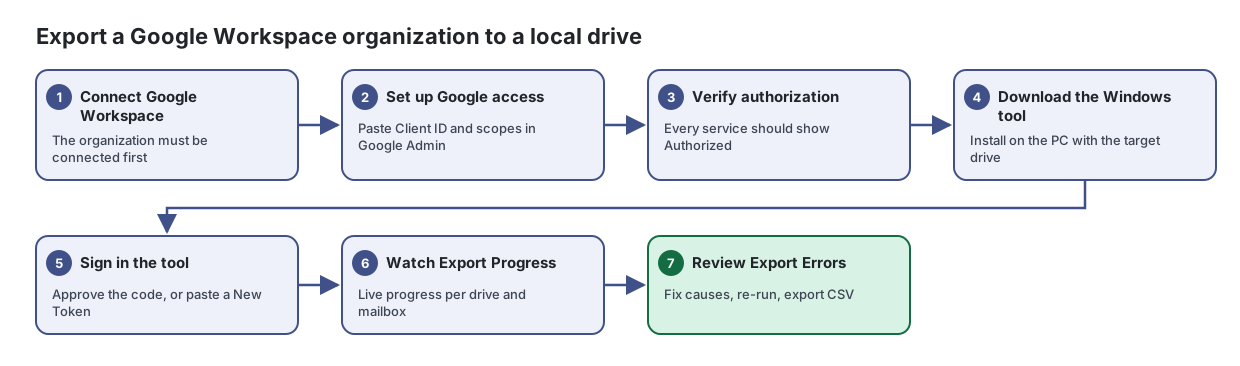
Steps
- Connect Google Workspace. The organization must be connected first
Connect or re-authorize your Google Workspace so Lavawall can monitor it, without seeing any monitoring data yourself.
From the article: How to connect Google Workspace
- Click Connect Google Workspace.
- Sign in with a Google Workspace administrator account.
- Review the permissions Google shows and allow them.
- You are returned to Lavawall and the page shows Connected with the admin account and domain.
- Set up Google access. Paste Client ID and scopes in Google Admin
Give Lavawall's backup and export service permission to copy your Google Workspace data, then confirm it works, in about two minutes.
From the article: How to authorize Google Workspace
- If you manage several organizations, choose one in Organization.
- Click Open Google Admin → API controls and sign in as a Google super administrator.
- In Google, click Add new.
- Click Copy next to Client ID and paste it into Google.
- Click Copy next to OAuth scopes and paste the whole line into Google.
- Click Authorize in Google.
- Verify authorization. Every service should show Authorized
From the article: How to verify the authorization
- Back on this page, enter a Google admin email for the domain. It needs admin rights but not a licence.
- Click Verify authorization.
- If you see "You're all set.", you are done. If you see "Almost there.", copy the scopes again, wait a minute and click Verify authorization again.
- Download the Windows tool. Install on the PC with the target drive
Copy a Google Workspace organization's Shared Drives, user Drives, email, calendars, contacts and tasks to a local or external drive, and watch the export as it runs.
From the article: How to export an organization with a token
- Click Download the Windows Tool and install it on the Windows PC that has the target drive attached.
- In Export Tokens, click New Token.
- In Company to export, choose the organization and click Generate.
- Copy the token from the Export Token: shown once window. It is shown only once.
- Paste the token into the Windows tool within 7 days. The token binds to the first machine that uses it.
- Start the export in the tool and watch Export Progress on this page.
- Sign in the tool. Approve the code, or paste a New Token
Sign the Windows export tool in to Lavawall from your browser, without copying and pasting a token.
From the article: How to approve the Windows tool
- In the Google Workspace Downloader, start sign-in. Your browser opens this page.
- Sign in to Lavawall if asked. The sign-in window appears automatically.
- Compare Code from the app with the code the tool shows. Only continue if they match.
- Choose the organization in Company to export.
- Click Approve & Sign In the App.
- When you see "Approved", go back to the tool. You can close the browser tab.
- Watch Export Progress. Live progress per drive and mailbox
- Review Export Errors. Fix causes, re-run, export CSV
From the article: How to review and export errors
- Scroll to Export Errors.
- Type in Filter… to narrow by company, user, service or item.
- Hover over an error to see Google's original message.
- Click Export CSV to download the list.
When you are done
The organization's data is on your drive, and any export errors are listed so you can fix them and run the export again.
Articles for the pages in this guide
- Connect Google Workspace: Connect or re-authorize your Google Workspace so Lavawall can monitor it, without seeing any monitoring data yourself.
- Google Workspace Export: Copy a Google Workspace organization's Shared Drives, user Drives, email, calendars, contacts and tasks to a local or external drive, and watch the export…
- Authorize the Google Workspace Downloader: Sign the Windows export tool in to Lavawall from your browser, without copying and pasting a token.
- Authorize Google Workspace Backup: Give Lavawall's backup and export service permission to copy your Google Workspace data, then confirm it works, in about two minutes.
Still need help?
Search the support centre, or contact our support team and tell us which step you are on:
- Chat now: use the chat button in the bottom-right corner of this page to reach our team right away. Where cookie consent is needed, the chat starts after you accept (cookie settings).
- Email: send our support team a message through the contact page. It goes straight to a person.
- Phone: AB: 1-403-538-5053, BC: 1-778-731-1339, ON: 1-289-724-8829, US: 1-406-988-7333, UK: +44 20 3695 9786.