Identity & Account Management
See every user account from Active Directory, Microsoft 365, Google Workspace and local computer accounts in one list, with the risks that matter and each account's history.
What the page is for
Identity & Account Management is a page in the Lavawall® console, in the Microsoft 365 area. Lavawall is the RMM, security, and compliance platform from ThreeShield, built and hosted in Canada. About this feature.
Most organizations have the same person in several places: Active Directory, Microsoft 365 and Google Workspace, plus local accounts on their computers. This page merges all of those sources into one table, one row per person, so you can see each account's status, last login, password age, MFA and risk flags together.
Local Windows accounts seen by the Lavawall agent are matched to the right person where the name matches. Built-in accounts such as a local Administrator stay as a separate row for each computer, because each one is a different account.
For each account you can see when it was last disabled, locked, deleted or had its password changed, and open the full history of those changes from every directory it is in.
Clickable summary cards at the top count common risks, such as admins, accounts without MFA, accounts inactive for 90 days or more, passwords that never expire, and failed logins or brute-force attempts. Click a card to filter the list. You can also add contact details and notes to a person and link them to their computers.
What you see
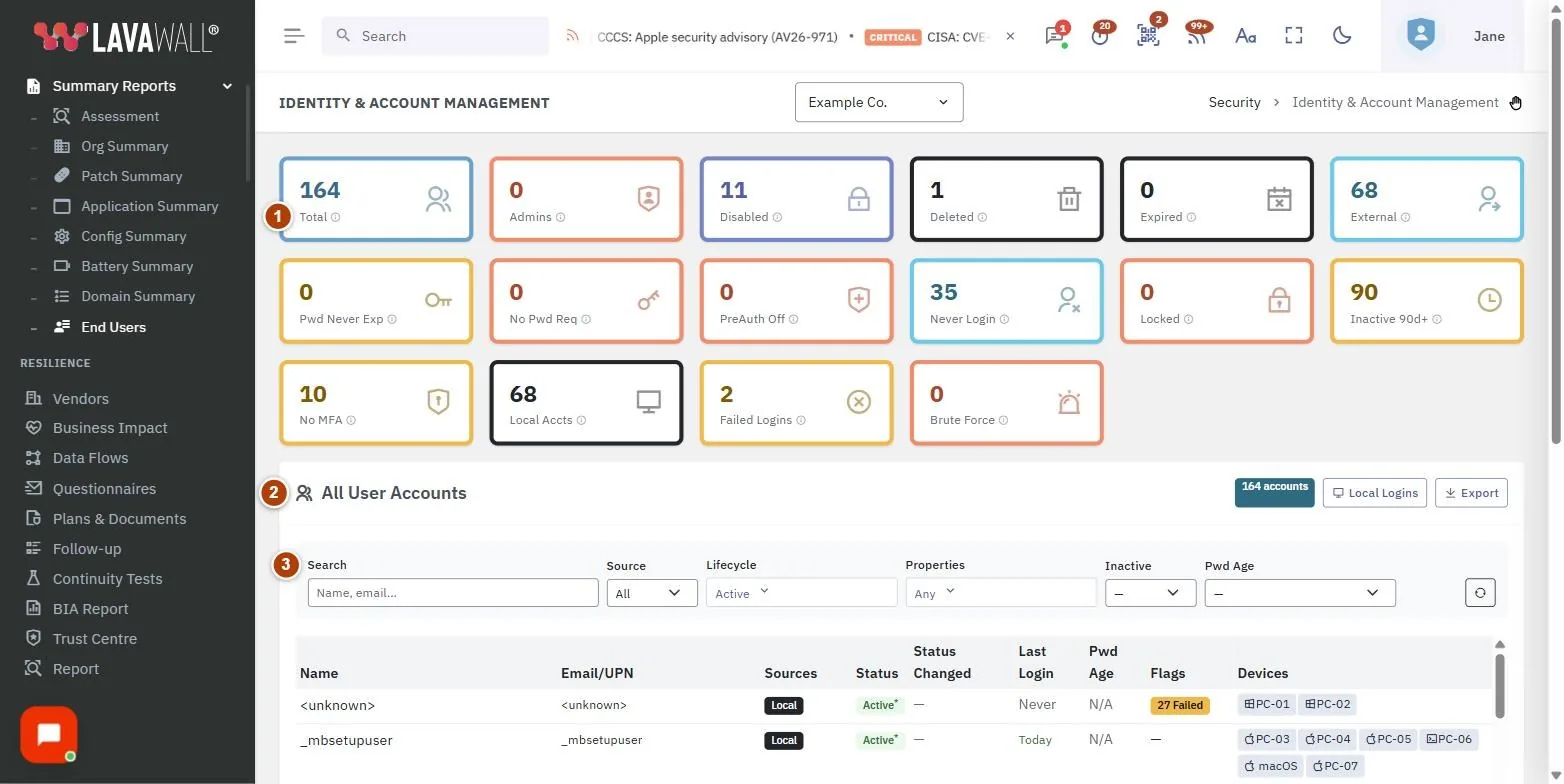
- Summary cards: Total, Admins, Disabled, Deleted, Expired, External, Pwd Never Exp, No Pwd Req, PreAuth Off, Never Login, Locked, Inactive 90d+, No MFA, Local Accts, Failed Logins and Brute Force. Click a card to filter.
- All User Accounts header: the account count, Local Logins and Export.
- Filters: Search, Source (AD, M365, GW, Local), Lifecycle (Active, Disabled, Locked, Expired, Deleted), Properties, Inactive, Pwd Age and a reset button.
- Accounts table: Name, Email/UPN, Sources, Status, Status Changed, Last Login, Pwd Age, Flags and Devices.
- Edit Contact window: First Name, Last Name, Phone, Mobile, City and Notes.
Above the summary cards, the Microsoft 365 toolbar takes you to the other Microsoft 365 pages: Summary, Devices, Microsoft 365, Breach Console, Google Workspace (when it is connected), Users, Directory, M365 Apps, Delete Phish and Licenses. Users is this page.
How to find risky accounts
- Click a summary card, for example No MFA or Inactive 90d+. Click it again to clear.
- Or open Properties and tick one or more options, such as Admin, No MFA, Weak MFA, Never Logged In, Pwd Never Expires, Local Admin, Stale Local, Failed Logins or Brute Force.
- Use Inactive (30+d, 90+d, 365+d) and Pwd Age to find old accounts and old passwords.
- Click a column heading to sort, for example Last Login.
How to include disabled or deleted accounts
- Open Lifecycle. Only Active is ticked by default.
- Tick Disabled, Locked, Expired or Deleted, or click All.
- Status Changed shows the most recent change to the account and how long ago it was. Click it to see the account's history.
Active Directory never records when an account was disabled, and the Microsoft 365 and Google Workspace audit logs only reach back so far. When the exact date is not known, Status Changed shows Before and a date in italics: the account was disabled after its last sign-in and before that date, which is when Lavawall first saw it disabled or where the stored audit log begins. Hover over it for both dates. Every change from now on is recorded with its date.
How to see an account's history
- Hover over the date in the Status Changed column to see when the account was last disabled, enabled, locked, deleted and had its password changed.
- Click the date to open Account history.
- The top of the window shows Last disabled, Last locked, Last deleted, Last password change and Last enabled, with the directory each came from.
- The table lists every change: When, Change, Directory, How we know, Changed by and Details. Click a column heading to sort, or type in Filter the history, for example
password.
History covers Microsoft 365, Google Workspace and Active Directory. It records accounts being disabled or enabled, locked or unlocked, deleted or restored, passwords changed or reset by an administrator, and accounts that must change their password at the next sign-in. In Microsoft 365, a change an administrator makes with Update user that blocks or allows sign-in is shown as Disabled or Enabled, not as a general update.
How we know tells you how exact the time is:
- Audit log and Sign-in log: the exact time from Microsoft 365 or Google Workspace, and who made the change where it was recorded.
- Directory: a time the directory itself reports, such as when the password was last set.
- Noticed by Lavawall: Lavawall saw the change during a sync, so the time is when it was noticed, which can be a little after it happened.
Smart lockout means Microsoft 365 refused sign-ins after too many wrong passwords. It blocks the location the attempts came from for a short time, not the whole account, so it is listed in the history but is not counted as the account's latest status change.
How to edit a person's contact details
- Hover over the person's name and click the edit button.
- Fill in First Name, Last Name, Phone, Mobile, City and Notes.
- Click Save. A note icon appears beside names that have notes.
How to link a computer to a person
- In the Devices column, click the add button.
- In Assign Device, search for the computer and select it.
- Click Assign.
- To remove a manual assignment, click the ✕ beside the device and confirm. Automatic assignments cannot be removed.
How to export
- Set the filters you want.
- Click Export to download the list.
The export includes, for each account, the last time it was disabled, enabled, locked, unlocked, deleted and restored, the last password change, and its full account history, all in UTC.
Tips
- The Sources badges show where each account exists, so you can spot an account that was removed from Microsoft 365 but still exists in Active Directory.
- Local Only accounts exist only on computers and are not in any directory. Check that they are expected.
- Click Local Logins for event-by-event detail of local Windows logons.
- Hover over a summary card for a description of what it counts.
- Manually assigned devices are shown with a dashed outline.
Troubleshooting
- An account appears twice.
- The sources could not be matched by name. Check the email or user name in each source.
- Failed Logins and Brute Force show a dash.
- Login events are still loading or no local login data is available for this company.
- Account history says "Not recorded".
- Lavawall has not seen that kind of change for the account yet. History starts from the audit and sign-in logs Lavawall already holds and grows from then on. Active Directory changes are recorded as Lavawall sees them.
- "Cannot remove auto assignments."
- The device was linked automatically from its login history and can only be changed at the source.
Task guides that use this page
Related articles
Still need help?
Search the support centre, or contact our support team and tell us which page you were on:
- Chat now: use the chat button in the bottom-right corner of this page to reach our team right away. Where cookie consent is needed, the chat starts after you accept (cookie settings).
- Email: send our support team a message through the contact page. It goes straight to a person.
- Phone: AB: 1-403-538-5053, BC: 1-778-731-1339, ON: 1-289-724-8829, US: 1-406-988-7333, UK: +44 20 3695 9786.
Names, companies, devices and figures in the pictures are examples. Other product and company names are trademarks of their respective owners.