Roll out a script to your clients
Run one script across many clients, with the values that differ for each company filled in by variables, then check every result.
A Lavawall® task guide: 5 steps across 4 console pages.
Before you start
- Who can do this: Anyone who can see the page
- Plan: Script Automation (add-on, or included in Complete). See pricing.
- Where to start: open Run Script in your console.
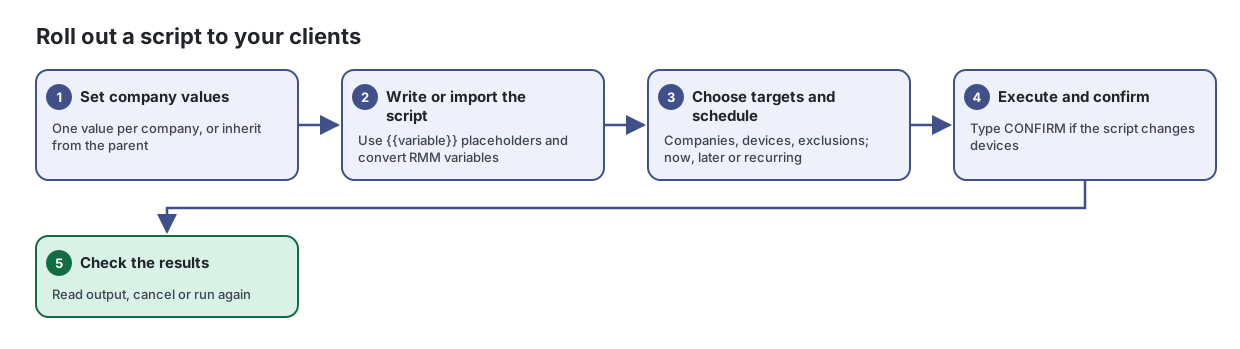
Steps
- Set company values. One value per company, or inherit from the parent
Store the values your scripts need for each company, such as a server path or licence key, so one script works everywhere.
From the article: How to give one company a different value
- Choose that company in the company selector.
- Find the inherited variable and click Override for this company.
- Enter the company's own value and click Save Variable.
- Write or import the script. Use {{variable}} placeholders and convert RMM variables
Write, import and share the scripts you run on your devices, with variables that fill in different values for each company.
From the article: How to convert a script from another RMM
- Paste the script into Script Contents.
- Under RMM Variables Detected, click each variable to convert it to Lavawall's
{{variable}}form. Lavawall recognizes styles used by Datto RMM, NinjaRMM, ConnectWise Automate, Atera, Syncro, N-able and generic PowerShell. - Save the script and set the variable values for each company.
- Choose targets and schedule. Companies, devices, exclusions; now, later or recurring
Run a script on every device in chosen companies, or on hand-picked devices, now, later or on a schedule. You can also send a desktop notification to users.
From the article: How to schedule a script
- Under When to run, choose Run at specific date/time and set Date & Time.
- Under Interpret time as, choose My local time (converted to UTC) or Each device's local time to run at that clock time in each device's own time zone.
- For a repeating job, choose Recurring schedule and enter a Cron Expression (minute, hour, day of month, month, day of week).
- To run the script on every new device as it is installed, choose On new device registration.
- Click Execute Script.
- Execute and confirm. Type CONFIRM if the script changes devices
From the article: How to run a script now
- Choose a script under Select Script. Fill in any parameters it shows.
- Under Target Companies, pick a company and click + Add. Repeat for more companies.
- Or, under Individual Devices, add specific devices. They appear under Manually Added Devices.
- To skip some devices in a selected company, add them to Excluded Devices.
- Leave When to run on Run immediately (or when device comes online).
- Check the Summary and click Execute Script, then confirm.
- Check the results. Read output, cancel or run again
Follow every script you have sent to devices, read what it printed, and cancel or re-run jobs.
From the article: How to read a script's output
- Click the output preview in the Output column, or its expand button.
- Switch between Standard Output and Error Output.
- Click Copy Output to copy it, then Close.
When you are done
The script has run on the computers you chose, and you have read each result and run any failed jobs again.
Articles for the pages in this guide
- Run Script: Run a script on every device in chosen companies, or on hand-picked devices, now, later or on a schedule. You can also send a desktop notification to users.
- Add/Modify Scripts: Write, import and share the scripts you run on your devices, with variables that fill in different values for each company.
- Script Execution Status: Follow every script you have sent to devices, read what it printed, and cancel or re-run jobs.
- Script Variables: Store the values your scripts need for each company, such as a server path or licence key, so one script works everywhere.
Still need help?
Search the support centre, or contact our support team and tell us which step you are on:
- Chat now: use the chat button in the bottom-right corner of this page to reach our team right away. Where cookie consent is needed, the chat starts after you accept (cookie settings).
- Email: send our support team a message through the contact page. It goes straight to a person.
- Phone: AB: 1-403-538-5053, BC: 1-778-731-1339, ON: 1-289-724-8829, US: 1-406-988-7333, UK: +44 20 3695 9786.