Turn an incoming call into a ticket and a follow-up
Turn an incoming phone call into a ticket, reply quickly, and schedule the follow-up.
A Lavawall® task guide: 5 steps across 5 console pages.
Before you start
- Who can do this: Anyone who can see the page
- Plan: Calendar (included in Professional and Complete). Intelligent caller ID (included in Grow, Professional, and Complete). Help desk - unlimited ticketing (per named agent; add-on) or Help desk + ad-hoc remote support (per named agent; add-on). CRM (Full; add-on, or included in Complete). See pricing.
- Where to start: open Calendar in your console.
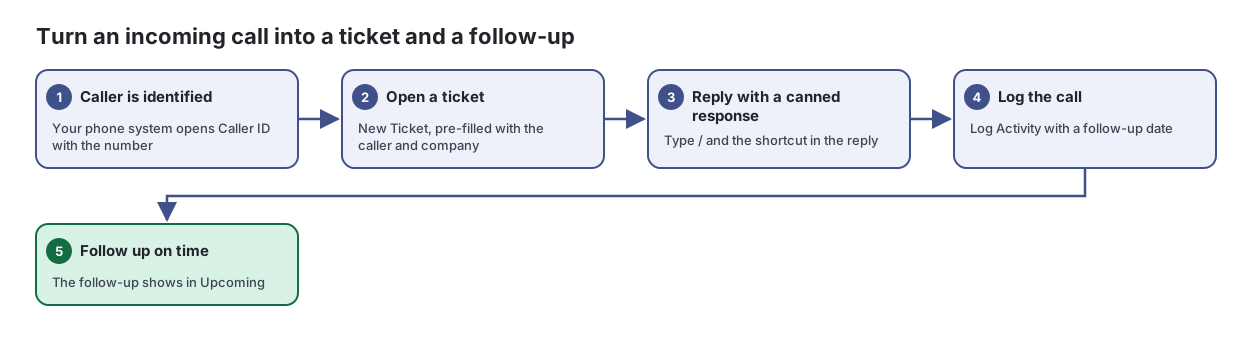
Steps
- Caller is identified. Your phone system opens Caller ID with the number
When a call comes in, see who is calling, their company and their computers, and open a ticket or log the call in one click.
From the article: How to connect your phone system
- Open Caller ID from the menu without a call. The page shows the setup instructions.
- In your phone system or softphone, set an action that opens a web page when a call arrives.
- Have it open the Caller ID page address with the caller's number as
phone(required) and, optionally, the caller ID name asname. - For Teams Wizard or Zoiper 5, follow the example settings shown on the page.
- Make sure you are signed in to the console in the browser the phone system opens.
- Open a ticket. New Ticket, pre-filled with the caller and company
Handle every client support request in one queue, from first email to billed time.
From the article: How to create a ticket
- Select New Ticket.
- Choose the Company and Requester (type to search), and enter the Subject and Description.
- Set Status, Assigned To, Category and Priority, and add CC (comma-separated) addresses if needed.
- Tick Private (don't notify requester) if the requester should not be emailed.
- Select Save.
- Reply with a canned response. Type / and the shortcut in the reply
Save the replies your team sends again and again, and insert them into any ticket with a quick shortcut.
From the article: How to create a canned response
- On the Responses tab, select New Response.
- Enter a Shortcut (you will type / and this in a ticket reply) and a Title.
- Choose or type a Category, and choose the Scope: Shared (team) or My private.
- Optionally pick an agent group under Restrict to agent group. Only members of that group will see the response.
- Write the Body. Use Insert placeholder or the { } toolbar button to add placeholders such as
{{first_name}}. - Check Placeholders in this response: each is marked built-in, defined or undefined. Select Rescan after editing.
- More steps in the article
- Log the call. Log Activity with a follow-up date
Manage your clients, prospects, contacts, deals, tickets and activities in one place, alongside the security information Lavawall already collects about them.
From the article: How to log an activity
- Select New Note, or Note on a company or contact.
- Choose the Type (Note, Call, Email, Meeting, Task, Chat or Other) and search for the Person / Company.
- Set the Direction (for calls and emails), Subject, Date/Time and Duration (min). For meetings, add Additional Attendees.
- To remind yourself, fill in Follow up with and Follow-up date. Follow-ups appear on the dashboard and the Calendar.
- Write the Body and select Save Activity.
- Follow up on time. The follow-up shows in Upcoming
See your meetings, calls, follow-ups and scheduled tickets in one calendar, and keep it in step with your Microsoft 365 or Google mailbox.
From the article: How to work through follow-ups
- Look for follow-ups in Upcoming or on the calendar. Overdue follow-ups are shown in red.
- Click a follow-up to open it. Follow-ups from notes can be marked done with Mark done.
- Click a scheduled ticket to open it in the ticket list.
When you are done
The call is logged, the ticket is answered, and the follow-up shows in Upcoming.
Articles for the pages in this guide
- Calendar: See your meetings, calls, follow-ups and scheduled tickets in one calendar, and keep it in step with your Microsoft 365 or Google mailbox.
- Caller ID: When a call comes in, see who is calling, their company and their computers, and open a ticket or log the call in one click.
- Canned Responses: Save the replies your team sends again and again, and insert them into any ticket with a quick shortcut.
- CRM & Help Desk: Manage your clients, prospects, contacts, deals, tickets and activities in one place, alongside the security information Lavawall already collects about them.
- Tickets: Handle every client support request in one queue, from first email to billed time.
Still need help?
Search the support centre, or contact our support team and tell us which step you are on:
- Chat now: use the chat button in the bottom-right corner of this page to reach our team right away. Where cookie consent is needed, the chat starts after you accept (cookie settings).
- Email: send our support team a message through the contact page. It goes straight to a person.
- Phone: AB: 1-403-538-5053, BC: 1-778-731-1339, ON: 1-289-724-8829, US: 1-406-988-7333, UK: +44 20 3695 9786.