AODA Accessibility Standards
Turn on Ontario's accessibility framework at your organization's size, answer its questionnaire, work the accessibility controls and templates, and prepare your compliance report.
What it is for
Ontario AODA is one of the compliance frameworks in the Lavawall® console, in the Compliance (GRC) area. Lavawall is the RMM, security, and compliance platform from ThreeShield, built and hosted in Canada. About the law.
The framework covers the Accessibility for Ontarians with Disabilities Act, 2005 and its Integrated Accessibility Standards Regulation, O. Reg. 191/11 (often called the IASR). The regulation applies to every organization that provides goods, services, or facilities to the public or to other third parties and has at least one employee in Ontario. A company based in another province or country with one employee in Ontario is included.
When you turn it on and choose your organization's size, Lavawall adds a questionnaire for that size, 18 controls, and five document templates. You answer the questions, attach evidence and track the controls the same way as for any other framework, and the questionnaire ends with a Compliance report section so you can check that you are ready to certify and file the report the province asks for.
Lavawall helps you track and evidence the requirements and prepare the report. It does not file the report for you, and turning the framework on does not make an organization compliant: the answers, the evidence and the certification are yours.
What the framework covers
The questionnaire follows the regulation's own parts:
- Part I - General requirements: accessibility policies, the multi-year accessibility plan, procurement, self-service kiosks, and training.
- Part II - Information and communications: feedback, accessible formats and communication supports, emergency information, and, for large and public sector organizations, websites at WCAG 2.0 Level AA.
- Part III - Employment: recruitment through redeployment, including individual accommodation plans and return to work.
- Part IV.1 - Design of public spaces: only public spaces that are newly built or redeveloped. It is not a retrofit requirement.
- Part IV.2 - Customer service: assistive devices, service animals, support persons, notice of temporary disruptions, training, and feedback.
- Compliance report: whether the report was filed on time, certified by the right person and made public.
Two things are left out on purpose. Part IV, Transportation, binds transit systems, school transportation, ferries, and municipalities that license taxis, and needs its own assessment. The Government of Ontario and the Legislative Assembly have their own schedule.
Which level to choose
The levels are the regulation's own size categories, counted as employees in Ontario. Each level includes everything in the one before it.
| Level | Who it is for | Questions | Compliance report |
|---|---|---|---|
| Small (1 to 49 employees) | A business or non-profit with 1 to 49 employees in Ontario | 29 | With 20 to 49 employees: every three years, on the customer service standard only; the current deadline is 31 December 2026. With fewer than 20: no report. |
| Large (50+ employees) | A business or non-profit with 50 or more employees in Ontario | 44 | Every three years, on all the standards; the current deadline is 31 December 2026. |
| Designated public sector | Municipalities, school boards, public hospitals, colleges, universities, public transit, and the provincial bodies listed in O. Reg. 146/10, at any size | 48 | Every two years; the last deadline was 31 December 2025. |
A public sector organization with fewer than 50 employees still chooses Designated public sector: size does not reduce its obligations.
What you see
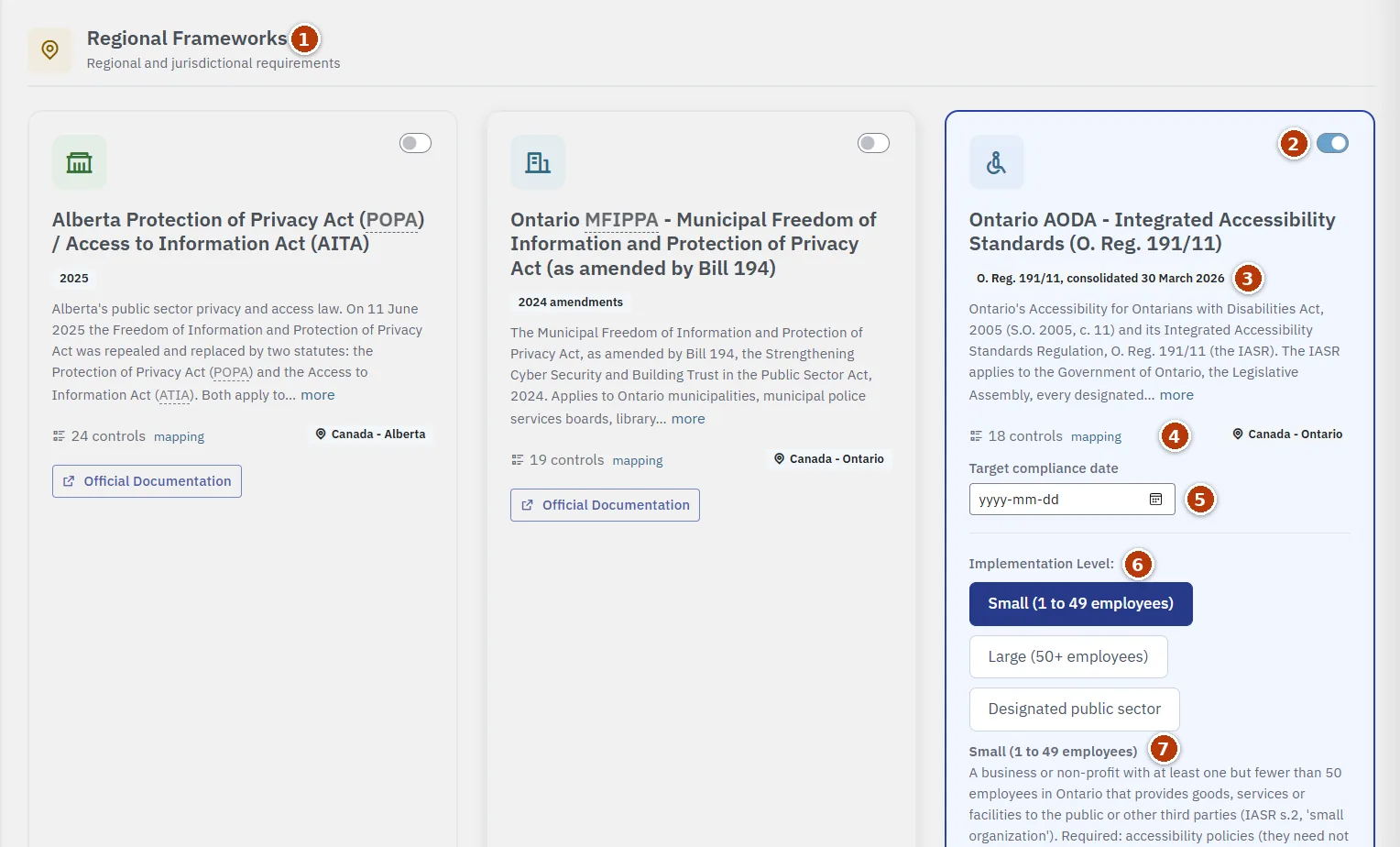
- Regional Frameworks: the section the AODA card is in, beside other provincial and state laws.
- On/off switch: turns the framework on for your organization.
- Name and version: Ontario AODA - Integrated Accessibility Standards (O. Reg. 191/11), the consolidated version of the regulation it follows, and a description (select more to read all of it).
- Controls and region: 18 controls with a mapping link, and the region Canada - Ontario.
- Target compliance date: the date you are working towards.
- Implementation Level: Small (1 to 49 employees), Large (50+ employees), or Designated public sector.
- Level description: who the chosen level is for and what it requires.
How to work through AODA
The steps follow the order most organizations work in: turn the framework on, answer the questionnaire, write up the controls, adopt the templates, then prepare the report.
How to turn on AODA and choose your size
- Open Frameworks in the Compliance area.
- Type AODA in Search frameworks..., or tick Ontario in the region filter. The card is under Regional Frameworks.
- Turn on the switch on the Ontario AODA - Integrated Accessibility Standards (O. Reg. 191/11) card.
- Under Implementation Level, choose Small (1 to 49 employees), Large (50+ employees), or Designated public sector. Read the description under the buttons to check that it fits, or select Compare all levels.
- Set a Target compliance date. If you file a compliance report in 2026, choose a date well before 31 December 2026 so the person who certifies the report has time to review it.
How to start the AODA questionnaire
- Open Assessments and select New Assessment.
- Find the AODA questionnaire for your size: AODA Integrated Accessibility Standards - Small organization (1 to 49 employees), - Large organization (50+ employees) or - Designated public sector. The Search and Framework filters narrow the list. To answer AODA together with your other frameworks, choose Start Unified Assessment instead.
- Enter an Assessment Name and, if you want one, a Due Date.
- Select Create & Start.
- Work through the sections in order, from Part I - General requirements to Compliance report, and answer Yes, No, or N/A. The note under each question names the section of the regulation it comes from and explains what counts.
- Select Attach Evidence on questions tagged Evidence, and add Internal Notes for your team.
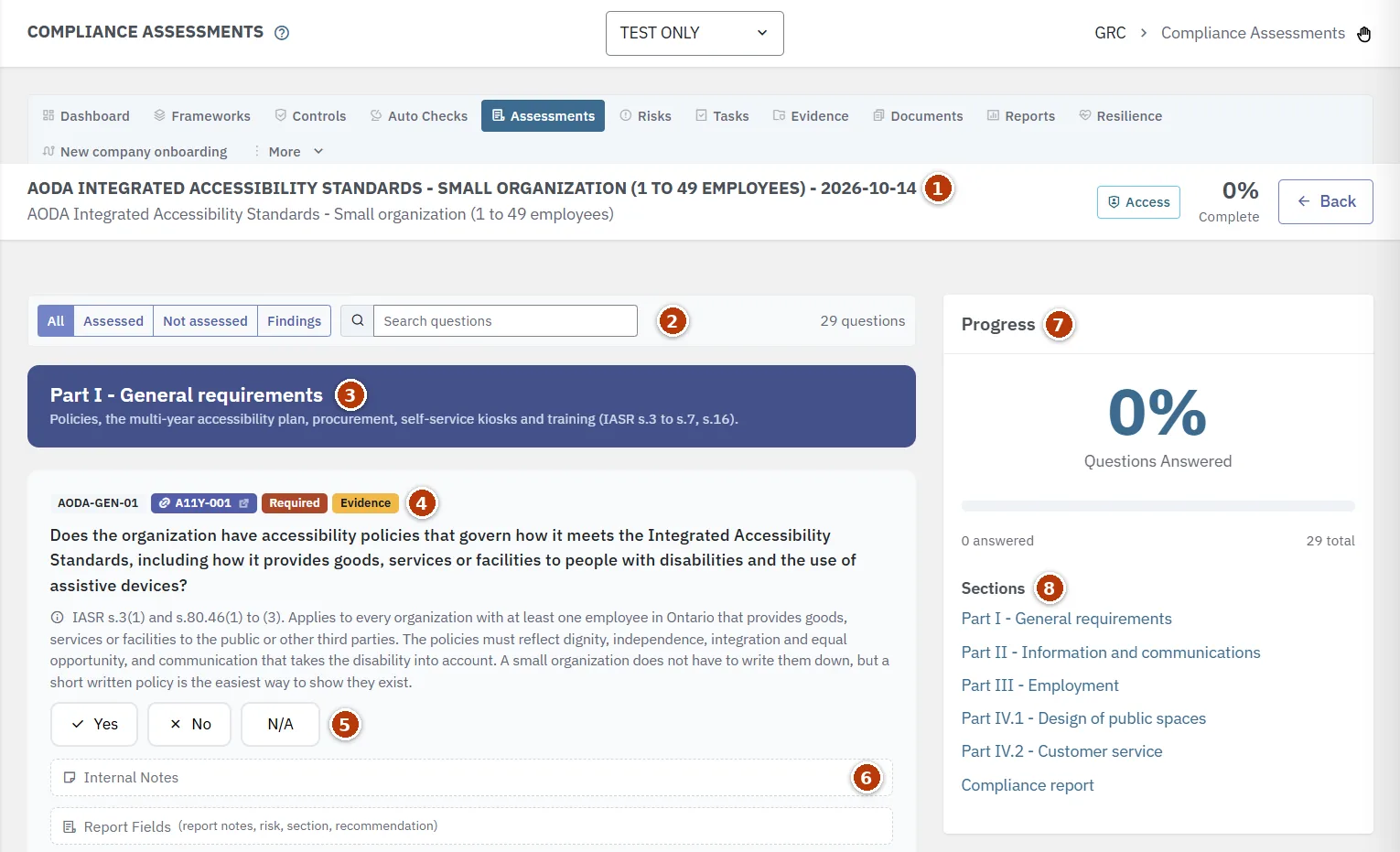
- Assessment header: the name you gave it, the questionnaire, the share complete, Access, and Back.
- Question filters: All, Assessed, Not assessed, and Findings, Search questions, and the number of questions.
- Section banner: the part of the regulation, with the sections it covers.
- Question tags: the question code, the control it answers (select it to open the control), Required, and Evidence on questions that expect a supporting file.
- Answer buttons: Yes, No, and N/A.
- Internal Notes and Report Fields. Attach Evidence is below them.
- Progress: how many questions are answered.
- Sections: jump to any part, including Compliance report.
How to work the AODA controls
- Open Controls.
- In Framework, choose AODA_IASR and select Filter.
- Select a control to open it. Read Ideal design, then in What this organization states select Fill from model design and edit the text to match what you actually do.
- Enter Performed by (role), choose a Frequency, and select Save design.
- To give several controls an owner or status at once, select Expand the list, tick the controls, choose Owner, Status, or Review, and select Apply to selected.
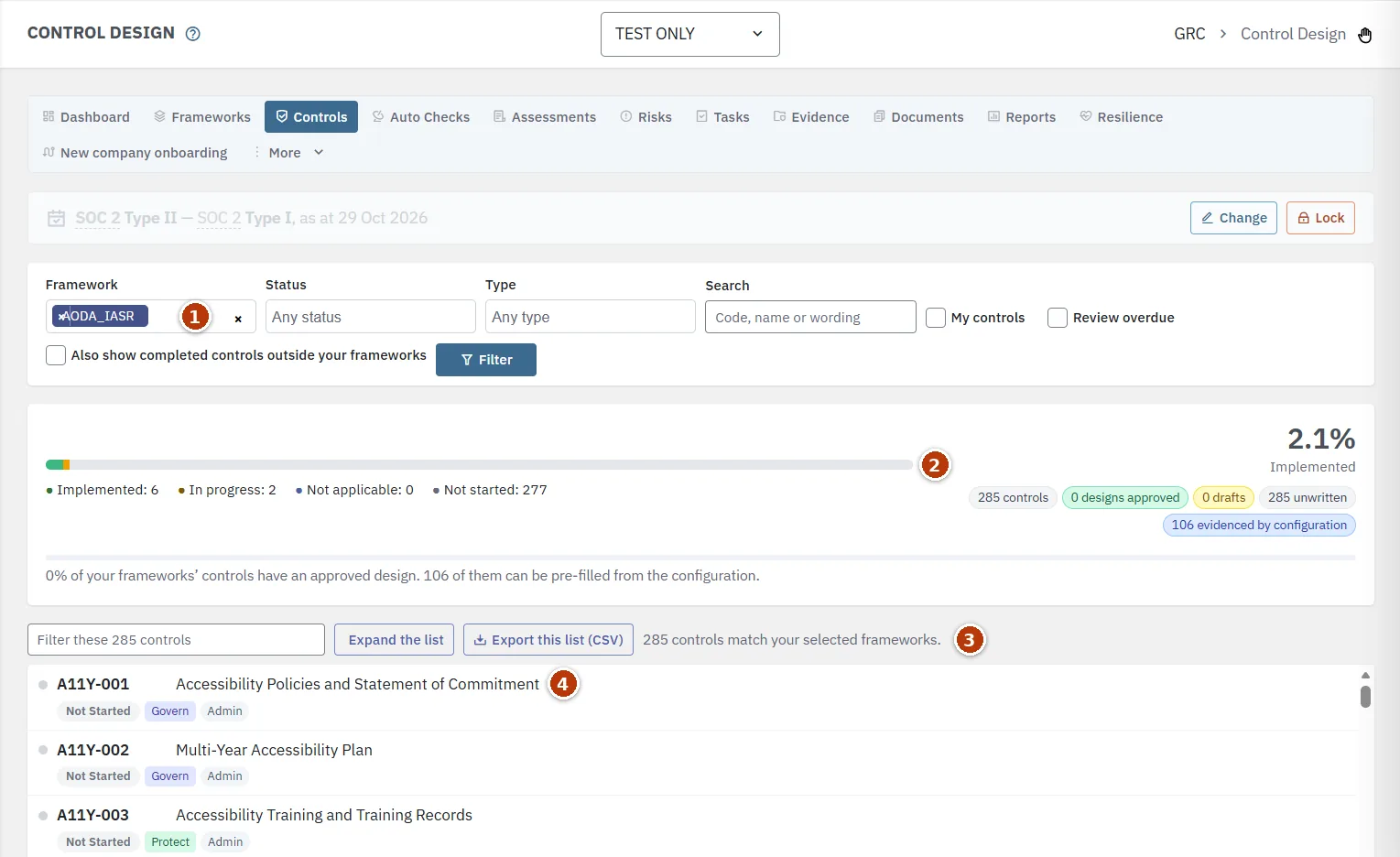
- Framework: choose AODA_IASR here, then select Filter.
- Progress summary: implemented, in progress, not applicable, and not started, and design counts.
- List tools: the quick filter, Expand the list, Export this list (CSV), and how many controls match.
- Control list: each control's code, name, status, function, and type.
You can also start a template from a control: open it, go to Documents under What already supports this control, and use Create from a template.
How to use the AODA templates
- Open Documents and select From template.
- Select Use on the template you need. The five AODA templates end in "(Ontario AODA)", for example Accessibility Policy (Ontario AODA).
- Fill in the Template variables and select Apply variables. Your company name and the dates are filled in for you.
- Edit the Content so it describes what your organization really does, tick the Linked controls it supports, and select Save.
- Select Submit for approval. Once it is approved, select Publish, then post the policy and the plan where the public can find them, such as your website.
How to prepare your accessibility compliance report
- Check whether you have to file. Businesses and non-profits with 20 or more employees in Ontario file every three years, and the current deadline is 31 December 2026. With fewer than 20 employees, no report is required. Designated public sector organizations file every two years.
- Finish the AODA assessment, including the Compliance report section. Use Not assessed to find what is left and Findings to list every No.
- Attach evidence to the questions that ask for it, such as your published policy, your multi-year plan, and your training records.
- Fix each finding, or record a plan and an owner for it, before the deadline.
- Ask the person who will certify the report to review the assessment and its evidence. The Act requires the report to be certified by a director, a senior officer, or another person with authority to bind the organization.
- File the report with the Government of Ontario. Lavawall does not file it for you.
- Answer the two Compliance report questions, attach a copy of what you filed, and select Send for sign-off. When an approver selects Sign off, the assessment is locked as your record.
Controls and templates
The 14 accessibility controls are new to the library. The four website controls are the same ones the ADA Title II framework uses, so an organization that follows both answers them once in a unified assessment.
| Code | Control |
|---|---|
| A11Y-001 | Accessibility Policies and Statement of Commitment |
| A11Y-002 | Multi-Year Accessibility Plan |
| A11Y-003 | Accessibility Training and Training Records |
| A11Y-004 | Accessible Formats and Communication Supports |
| A11Y-005 | Accessible Feedback Process |
| A11Y-006 | Accessible Emergency and Public Safety Information |
| A11Y-007 | Accessibility in Procurement and Self-Service Kiosks |
| A11Y-008 | Accessible Recruitment and Accommodation Notices |
| A11Y-009 | Individual Accommodation Plans and Return to Work |
| A11Y-010 | Accessibility in Performance, Career Development and Redeployment |
| A11Y-011 | Service Animals, Support Persons and Assistive Devices |
| A11Y-012 | Notice of Temporary Disruptions |
| A11Y-013 | Accessibility Compliance Reporting |
| A11Y-014 | Accessible Design of New and Redeveloped Public Spaces |
| WEB-004 | Digital Accessibility Conformance |
| WEB-005 | Accessibility Statement and Feedback Route |
| WEB-006 | Accessible Document Publishing |
| WEB-007 | Captioning and Media Accessibility |
| Template | What it is for | Who needs it |
|---|---|---|
| Accessibility Policy (Ontario AODA) | Your statement of commitment and the customer service policy, including assistive devices, service animals, and support persons. | Every organization. It must be written down and made public at 50 or more employees and in the public sector. |
| Multi-Year Accessibility Plan (Ontario AODA) | The plan, laid out by area of the regulation with owners and target dates. Review it at least every five years. | Large and public sector organizations. |
| Individual Accommodation Plan and Return to Work Process (Ontario AODA) | The written process for individual accommodation plans and for return to work. | Large and public sector organizations. |
| Notice of Temporary Service Disruption (Ontario AODA) | A notice ready to post when facilities or services that people with disabilities use are temporarily disrupted. | Every organization that serves the public. |
| Accessibility Training Record (Ontario AODA) | The dates of training and the number of people trained. | Required records at 50 or more employees and in the public sector; useful at any size. |
Tips
- The 20-employee line matters only for the compliance report. An organization with 20 to 49 employees chooses Small (1 to 49 employees) and still files a report on the customer service standard.
- The website requirement, WCAG 2.0 Level AA for public websites and web content, has applied to large and public sector organizations since 1 January 2021. Live captions and pre-recorded audio description are the two exceptions.
- A small organization does not have to write its accessibility policies down, but a short written policy is the easiest way to show that they exist.
- Training covers everyone who works or volunteers for you, people who help develop your policies, and anyone who provides goods, services, or facilities on your behalf. Large and public sector organizations also keep records of the dates and the number of people trained.
- N/A is left out of the compliance figure rather than counted as a failure, so answer it honestly when a requirement does not apply, for example Part IV.1 when nothing has been built or redeveloped.
- Each question cites the section of the regulation it comes from, so the person certifying the report can check each answer against the source.
Troubleshooting
- I cannot find the AODA card.
- It is under Regional Frameworks. Type AODA in Search frameworks..., tick Ontario in the region filter, or select Show all to clear the filter.
- The switches are greyed out.
- Your GRC role can view frameworks but not change them. Ask your GRC administrator.
- The questionnaire has no website questions.
- The small organization questionnaire leaves them out, because the website requirement in section 14 of the regulation does not apply at that size. If you have 50 or more employees in Ontario, choose Large (50+ employees).
- A question does not apply to us.
- Answer N/A. The note under each question says when that is the right answer, for example the advisory committee question for an organization that is not a municipality, or the public spaces questions when nothing has been built or redeveloped.
- We run public transit or school transportation.
- Part IV, Transportation, is not part of this framework. It needs its own assessment. Contact us if you need one.
Task guides
Related articles
Still need help?
Search the support centre, or contact our support team and tell us which page you were on:
- Chat now: use the chat button in the bottom-right corner of this page to reach our team right away. Where cookie consent is needed, the chat starts after you accept (cookie settings).
- Email: send our support team a message through the contact page. It goes straight to a person.
- Phone: AB: 1-403-538-5053, BC: 1-778-731-1339, ON: 1-289-724-8829, US: 1-406-988-7333, UK: +44 20 3695 9786.
Companies and figures in the pictures are examples. Sources: the Integrated Accessibility Standards, O. Reg. 191/11, the Accessibility for Ontarians with Disabilities Act, 2005, and Completing your accessibility compliance report (Government of Ontario). Last verified 14 October 2026. This article is not legal advice.