Build a cybersecurity assessment report
Produce a cybersecurity assessment report for a client from what Lavawall already knows, with a Nessus scan and your own findings as optional extras.
A Lavawall® task guide: 6 steps across 7 console pages.
Before you start
- Who can do this: Anyone who can see the page
- Plan: Domain Attack-Surface Scanner (included in every plan). SaaS Discovery (included in Professional and Complete). Vulnerability Assessment (included in Grow, Professional, and Complete). Patch Monitoring (included in Grow, Professional, and Complete) or Patch Reporting (add-on, or included in Complete). RMM Agent (Windows / Mac / Linux; included in Grow, Professional, and Complete) or System Monitoring (included in Grow, Professional, and Complete). Configuration Monitoring (add-on, or included in Complete) or System Monitoring (included in Grow, Professional, and Complete). See pricing.
- Where to start: open Domain Scan Results in your console.
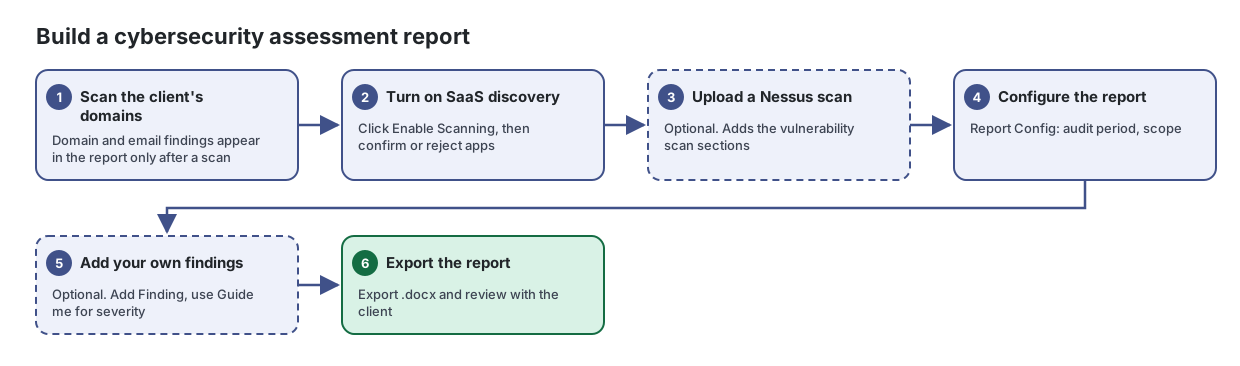
Steps
- Scan the client's domains. Domain and email findings appear in the report only after a scan
Scan a domain from the outside, the way an attacker would see it, and get a clear list of website, email and DNS issues to fix.
From the article: How to scan a domain
- Select the company the domain belongs to.
- Type the domain in Scan a domain (for example example.com). Web addresses are trimmed to the domain automatically.
- Leave Include admin services (SSH, RDP) on to also check for exposed administrative services.
- Turn on Scan exact hostname / subdomain to scan, for example, a staging site exactly as typed instead of the main domain.
- Click Scan and watch the progress bar. Sections fill in as results arrive.
- Turn on SaaS discovery. Click Enable Scanning, then confirm or reject apps
Find the cloud services and apps your people actually use, including AI tools, so nothing sensitive runs outside your view.
From the article: How to turn on email scanning
- Select the company in the company picker.
- Click Enable Scanning and confirm.
- A progress banner shows the initial scan. Apps appear as they are found; click Refresh to update the list.
- To stop, click Disable and confirm.
- Upload a Nessus scan Optional. Adds the vulnerability scan sections
Bring your Tenable Nessus scan results into Lavawall so every vulnerability is matched to the devices you already manage.
From the article: How to upload a scan
- Select the company in the company picker at the top of the console.
- In Upload Nessus Scan, choose a Scan Type: Detect automatically, LAN (Internal) Scan, WAN (External) Scan or Other.
- Optionally enter a Description and Notes.
- Drag a
.nessusfile onto the drop area, or click it to browse. The upload starts as soon as you pick the file. - When processing finishes, the scan appears in the Scans list.
- Configure the report. Report Config: audit period, scope
Turn everything Lavawall knows about a company into a single security assessment report you can review, edit and hand to the client.
From the article: How to set the audit period
- In Security Assessment Report, click Report Config.
- Under Audit Period, type a label (for example "2026-Q1") and click the check button.
- Enter a Start and End date and click the check button. The report uses this range to show which Macs were out of date during the assessment and how many were updated by the end. Resolved issues stay in the report for the whole period.
- Add your own findings Optional. Add Finding, use Guide me for severity
From the article: How to add your own finding
- In Report Config, under Custom Report Sections & Findings, click Add Finding.
- Choose a Report Section, or pick New section heading and choose a preset (such as Physical Security or Backup & Recovery) or type your own, then choose its Position in Report.
- Enter the Finding Title and choose a Severity. Click Guide me to answer a few questions and get a CVSS-aligned rating, or (what each level means) for definitions.
- Write the Description, Recommendation, Management Response and Mitigating Controls.
- Click Save Finding. Use Add Heading to create an empty section first if you prefer.
- Export the report. Export .docx and review with the client
From the article: How to produce a report
- If you have not already, scan the company's domains on the Domain Scan Results page, so the domain and email findings are included.
- Select the company in the company picker.
- Wait for "Gathering security data..." to finish, then read the Executive Summary.
- Use Expand/Collapse All or click a section heading to review each area.
- Open Security Assessment Report and click Export .docx for a Word document, or Copy Report to paste it elsewhere. Print prints the whole page.
What the report includes
These are included automatically. You do not need to open their pages to build the report:
- Missing patches
- Devices due for replacement, by hardware age
- Configuration issues
- Domain scan findings, once the domains have been scanned
- Vulnerability scan results, if you upload a Nessus scan
The report also covers devices and infrastructure, identity and account issues, cloud security, suspicious IP addresses, active threats and ransomware hunting when the company has data for them. A section only appears when there is data for it.
When you are done
You have a reviewed assessment report to go through with the client.
Articles for the pages in this guide
- Domain Scan Results: Scan a domain from the outside, the way an attacker would see it, and get a clear list of website, email and DNS issues to fix.
- SaaS Discovery: Find the cloud services and apps your people actually use, including AI tools, so nothing sensitive runs outside your view.
- Nessus Scanner: Bring your Tenable Nessus scan results into Lavawall so every vulnerability is matched to the devices you already manage.
- Cybersecurity Assessment: Turn everything Lavawall knows about a company into a single security assessment report you can review, edit and hand to the client.
- Patchable Package Summary: See which software packages are missing updates, how many computers each one affects and how serious the gap is.
- Replacement Priority: Rank your computers by how urgently they need replacing, so hardware budgets go where they help most.
- Configuration Summary: See which security settings fail most often across your computers, ranked by risk.
Still need help?
Search the support centre, or contact our support team and tell us which step you are on:
- Chat now: use the chat button in the bottom-right corner of this page to reach our team right away. Where cookie consent is needed, the chat starts after you accept (cookie settings).
- Email: send our support team a message through the contact page. It goes straight to a person.
- Phone: AB: 1-403-538-5053, BC: 1-778-731-1339, ON: 1-289-724-8829, US: 1-406-988-7333, UK: +44 20 3695 9786.